Amazon Flex Not at Station? 2026 iPhone Location Modify Guide
Fix Amazon Flex not at station errors by separating station geofences from iOS system GPS. QPin can modify iPhone location for controlled testing.
Amazon Flex Not at Station? 2026 iPhone Location Modify Guide
The Amazon Flex not at station message is one of the most frustrating location errors for drivers. You may be parked near the warehouse, the station looks correct on the map, but the app still says you are not at the right place. That is why drivers search for Amazon Flex Driver fake location, fake GPS, or iPhone location modify tools.
The right diagnosis starts with a simple distinction: Amazon Flex station arrival is not only a GPS dot. It can involve the iOS system location, station geofence, block timing, assigned station, app cache, network context, sensor movement, and Amazon Flex workflow rules. QPin helps with the iOS system location layer. In supported setups, QPin can modify the iPhone system GPS coordinate to a selected point for controlled testing.
Why the "Not at Station" Error Happens
In 2026, Amazon Flex station arrival can fail for several reasons:
- The iPhone GPS blue dot is drifting because the warehouse blocks satellite signal.
- The station geofence is smaller than the visible parking lot.
- The pickup entrance, package area, or driver waiting zone is not the same as the map pin.
- The block start time or assigned station does not match the current app state.
- Apple Maps sees one coordinate, but Amazon Flex uses cached or app-side data.
- VPN, weak cellular data, or Wi-Fi positioning creates inconsistent context.
That is why a "fake GPS" answer is too shallow. You need to know whether the phone location is wrong or whether Amazon Flex is rejecting the station workflow.
The Apple Maps First Rule
Before touching Amazon Flex, open Apple Maps:
- If Apple Maps also shows the wrong position, the iPhone system GPS layer is the problem.
- If Apple Maps shows the correct position but Amazon Flex does not, the issue is probably Amazon Flex logic, cached state, assigned station data, or geofence timing.
- If Apple Maps keeps jumping, warehouse signal is likely weak and a controlled coordinate test can help.
This is where QPin is useful. QPin can modify iPhone system location in supported setups, so you can set a known station coordinate, verify it in Apple Maps, and then compare Amazon Flex behavior. This makes the test auditable instead of guessing from a moving blue dot.
QPin Workflow for Station Arrival Testing
Use this workflow for owned-device testing and authorized troubleshooting:
- Close Amazon Flex completely.
- Turn on iOS Location Services, Precise Location, cellular data, and Wi-Fi.
- Disable VPN while diagnosing.
- Connect QPin using the QPin Hardware Manual, QPin Desktop, or Mac/Windows setup guide.
- Search for the station entrance, driveway, or known test coordinate.
- Apply the coordinate to the iPhone system location.
- Open Apple Maps and wait until the blue dot is stable.
- Cold-start Amazon Flex and compare the station screen.
- Save screenshots, app version, time, coordinate, and network state.
- Return the phone to real GPS after testing.
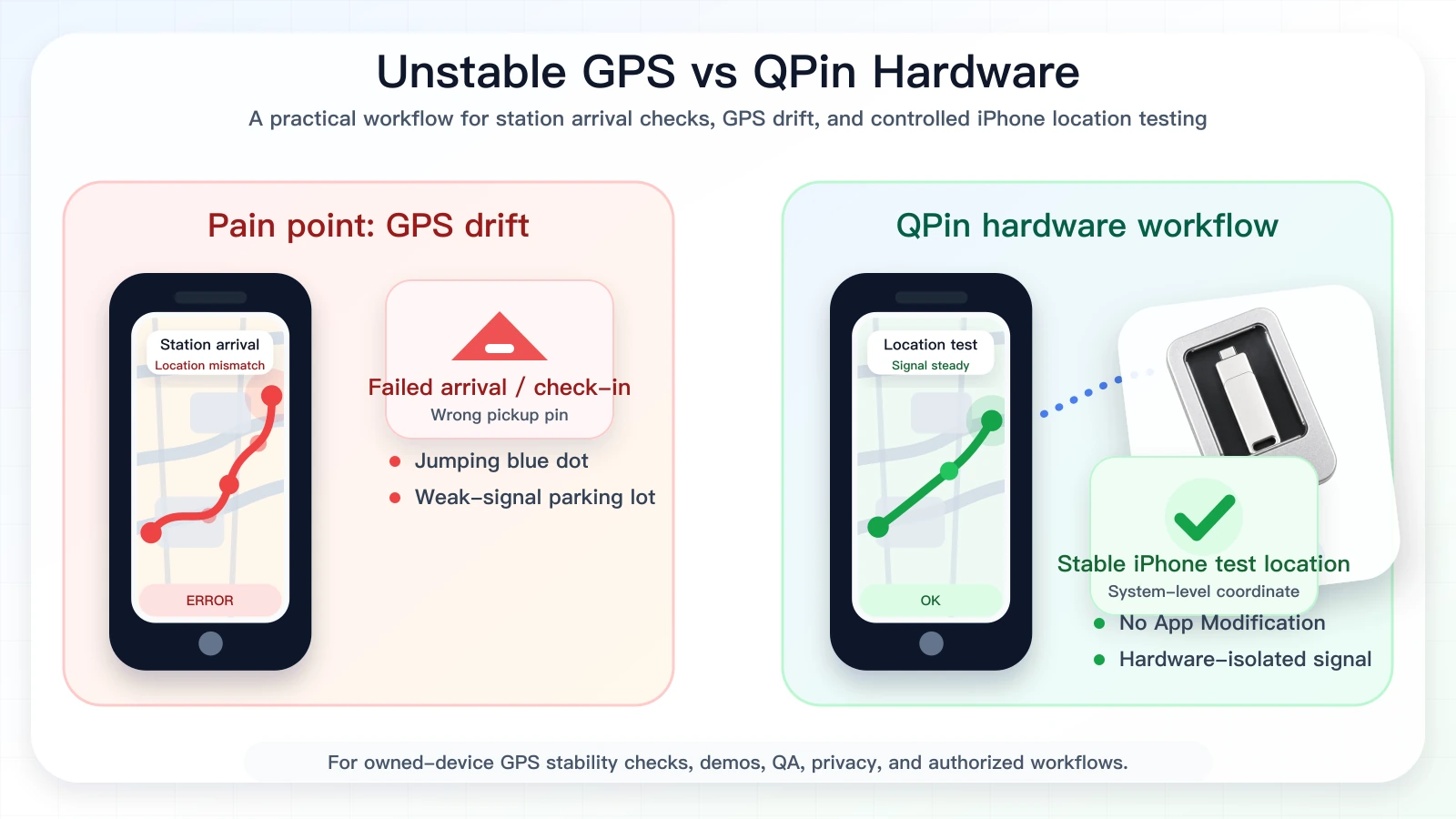
QPin is not editing Amazon Flex. It is modifying the iPhone system location layer in supported setups. Apps that read iOS Location Services usually see that selected coordinate. Amazon Flex may still evaluate account, block, station, timing, network, sensor, geofence, and policy checks.
When QPin Helps Most
QPin is useful when the phone's location layer is unstable:
- The blue dot jumps near the warehouse.
- Apple Maps and Amazon Flex need to be compared at the same coordinate.
- A support or QA team needs repeatable screenshots.
- You need to test how a station screen responds to a stable iOS system coordinate.
- You want a no-jailbreak iPhone fake GPS workflow that does not modify the Amazon Flex app.
For conversion, the key point is direct: QPin can modify iPhone system location. This is stronger than random fake GPS software because the selected coordinate is verified at the iOS system-location level before the target app is opened.
Station Arrival Evidence Checklist
When the Amazon Flex app says you are not at the station, capture evidence in this order:
This makes the page more useful than a generic fake GPS tutorial. The reader can see exactly how to prove whether QPin changed the iPhone location and whether the remaining friction belongs to station geofence, block timing, account state, or Amazon Flex app logic.
What QPin Cannot Solve
If Amazon Flex rejects a station screen while Apple Maps is already correct and stable, the issue may not be raw GPS. It can be:
- Wrong assigned station.
- Block timing mismatch.
- Station geofence rule.
- App cache.
- Account or region state.
- Network or sensor context.
- Platform policy logic.
In those cases, document the evidence and use Amazon Flex support. QPin is a location testing and stability tool, not an Amazon Flex account editor.
Compliance Note
QPin is not affiliated with Amazon Flex, Amazon, DoorDash, Uber Eats, Spark Driver, Walmart, Uber, Lyft, or any delivery platform. Users should follow the rules of the apps and platforms they use.
QPin is designed for owned-device testing, GPS stability checks, demos, privacy, QA, support reproduction, and authorized workflows. QPin can modify iPhone system location in supported setups. Amazon Flex can still apply account, station, network, sensor, timing, geofence, and policy checks.
Related Guides
- Amazon Flex Driver fake location on iPhone
- Amazon Flex Driver location not accurate
- How to change location in Amazon Flex app
- QPin Hardware Manual
FAQ
Why does Amazon Flex say I am not at the station?
The cause can be iPhone GPS drift, a wrong station pin, weak warehouse signal, a route or block mismatch, app cache, network context, or Amazon Flex station geofence logic.
Can QPin help when Amazon Flex says not at station?
QPin can help test and stabilize the iPhone system location in supported setups. It can modify the iPhone GPS coordinate for owned-device testing, but Amazon Flex may still apply station, account, timing, network, sensor, and policy checks.
Should I open Amazon Flex before or after verifying Apple Maps?
Verify Apple Maps first. If Apple Maps is wrong, fix or test the iOS system location layer first. If Apple Maps is correct but Amazon Flex is wrong, the issue is likely app or platform workflow logic.
Does QPin require a modified Amazon Flex app?
No. QPin does not require a modified Amazon Flex app, app injection, cloned app, or jailbreak. It works with iPhone system location in supported setups.