Why GeoPort Needs Developer Mode on iPhone
GeoPort may ask for iOS Developer Mode, passcode changes, USB trust, and desktop pairing. Learn why this happens, how to troubleshoot it, and when QPin Hardware is a better fit.
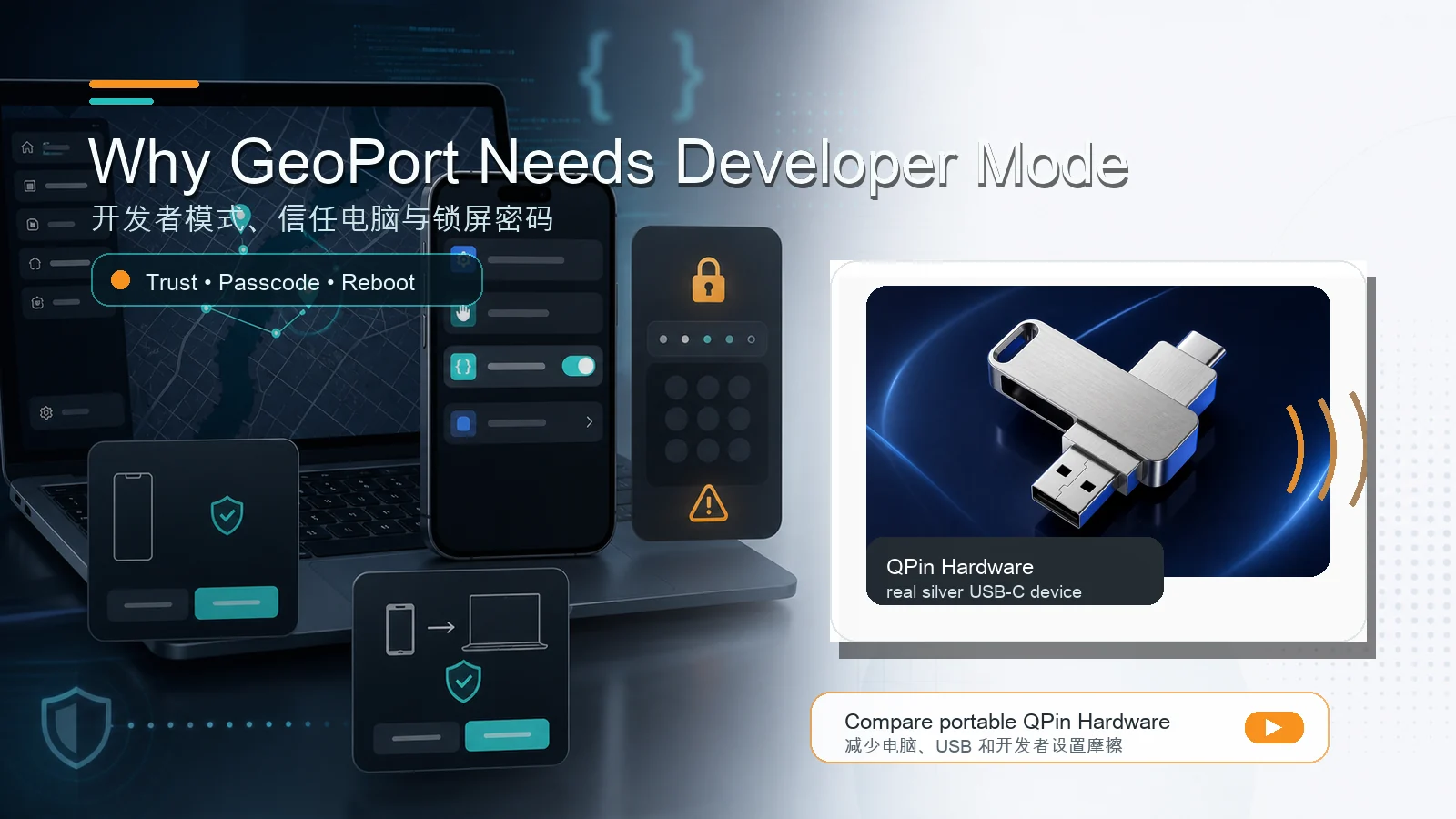
Quick Answer
GeoPort can ask for Developer Mode because many iPhone location simulation workflows use development-oriented device controls. That is normal for testing tools, but it is not a normal consumer setup.
For a technical user, Developer Mode is acceptable friction. For a non-technical user who only wants a reliable daily workflow, it can feel like too many steps: USB trust, passcode prompts, reboots, hidden settings, desktop services, and reconnecting the iPhone after every change.
If Developer Mode is the part you do not want to manage, compare QPin Hardware. It is a different product category: a paid portable hardware workflow rather than a free desktop testing tool.
What Developer Mode Means
Developer Mode is an iOS setting intended for app development, device testing, and development-oriented workflows. It is not the same as installing a normal App Store app.
When a location tool asks you to enable Developer Mode, the setup becomes more sensitive because it can involve:
- Trusting a computer.
- Connecting through USB.
- Restarting the iPhone.
- Confirming security prompts.
- Temporarily changing passcode-related settings in some flows.
- Reconnecting the phone after settings change.
That is why Developer Mode can become a real usability barrier for non-technical users. It increases the chance that a user stops before the tool is fully working.
What This Means for Users
The important point is the difference between "the workflow is technically possible" and "the workflow is easy for every user."
GeoPort-style desktop workflows can be powerful, but they may require users to understand:
- Why iOS asks for Developer Mode.
- Why a trust prompt matters.
- Why Windows may need Apple device services.
- Why a passcode prompt can block setup.
- Why Developer Mode may appear only after the phone is connected to a desktop device-management workflow.
So Developer Mode is not just a checkbox. It is part of a larger desktop trust and pairing chain.
Why Developer Mode May Be Hidden
Users often expect Developer Mode to be visible immediately under Settings, Privacy & Security. In practice, it may not appear until the iPhone has been connected to a development or device-management workflow.
If Developer Mode is missing:
- Connect the iPhone to the computer with a data-capable USB cable.
- Unlock the phone.
- Confirm Trust This Computer.
- Open iTunes, Apple Devices, Xcode on Mac, or another device-management tool if needed.
- Return to Settings, Privacy & Security.
- Look for Developer Mode again.
- Enable it, reboot, and confirm the prompt after restart.
If you reset the iPhone, upgrade iOS, or move to a new computer, you may need to repeat parts of this setup.
Why Passcode Prompts Appear
Some setup flows cannot enable Developer Mode while a device passcode is active. That is why a user may see a message asking them to temporarily remove the passcode.
Treat that as a setup-only step:
- Do not leave the phone without a passcode for normal use.
- Temporarily remove it only if you understand the tradeoff and the tool requires it.
- Complete the Developer Mode step.
- Re-enable passcode and Face ID.
- Test GeoPort again after reconnecting the device.
If this feels too invasive, that is not a user error. It simply means a developer-style desktop tool may not match your comfort level.
Where Users Usually Get Stuck
Common stopping points include:
- No Developer Mode option under Privacy & Security.
- Trust prompt was dismissed or never appeared.
- The phone has a passcode and GeoPort asks to remove it.
- The phone reboots, but the user does not confirm Developer Mode after restart.
- Windows sees the phone as storage but GeoPort does not see it as a usable device.
- GeoPort worked before a phone reset, then fails after the reset.
- The user expects WiFi mode to work without first completing the desktop pairing chain.
These are workflow problems, not just "user mistakes."
Decision Box: Who Should Use GeoPort?
GeoPort is a good fit if:
- You are a developer, QA tester, or technical user.
- You are comfortable with USB trust, drivers, and device services.
- You mostly work at a desk.
- You can debug iOS settings and connection states.
- You want a free tool before buying hardware.
GeoPort may be a poor fit if:
- You do not want to touch Developer Mode.
- You do not want to temporarily change passcode settings.
- You need a mobile workflow away from a computer.
- You use the workflow frequently and do not want repeated setup.
- You need a product support path rather than community troubleshooting.
When QPin Hardware Makes More Sense
QPin Hardware is relevant when the problem is not GeoPort's map interface but the setup chain behind it.
GeoPort is a free desktop tool. QPin Hardware is a paid portable accessory workflow. The tradeoff is simple:
- GeoPort lowers upfront cost but increases desktop setup responsibility.
- QPin Hardware adds device cost but reduces dependence on the desktop USB/developer chain during normal use.
QPin should not be treated as a guaranteed bypass for every app rule. Third-party apps and games can still apply their own checks and policies. The realistic benefit is portability and a cleaner repeated-use workflow.
Recommended Next Steps
- GeoPort not working on iOS 18
- QPin Hardware