دليل تزوير GPS على iPhone 16: غيّر الموقع على iPhone 16/16 Pro/16 Pro Max
دليل كامل لتغيير موقع GPS على سلسلة iPhone 16 مع دعم USB-C وiOS 18، ومقارنة QPin مع أدوات الحاسوب وخطوات الإعداد.
iPhone 16 GPS Spoofing: The Complete Guide
The iPhone 16 series represents Apple's latest flagship lineup, featuring the new USB-C port and iOS 18. If you're wondering how to change your GPS location on iPhone 16, iPhone 16 Pro, or iPhone 16 Pro Max, this guide covers everything you need to know.
What's Special About iPhone 16 for GPS Spoofing?
The iPhone 16 series introduced several changes that affect location spoofing:
USB-C Port: Unlike previous iPhones with Lightning, the iPhone 16 uses USB-C, which actually makes connecting GPS spoofing hardware easier and more universal.
A18/A18 Pro Chip: The new processors have enhanced security features, but hardware-level GPS spoofing bypasses these restrictions effectively.
iOS 18: All iPhone 16 models ship with iOS 18, which is designed for supported hardware GPS workflows like QPin.
Best Methods for iPhone 16 GPS Spoofing
Method 1: QPin Hardware Spoofer (Recommended)
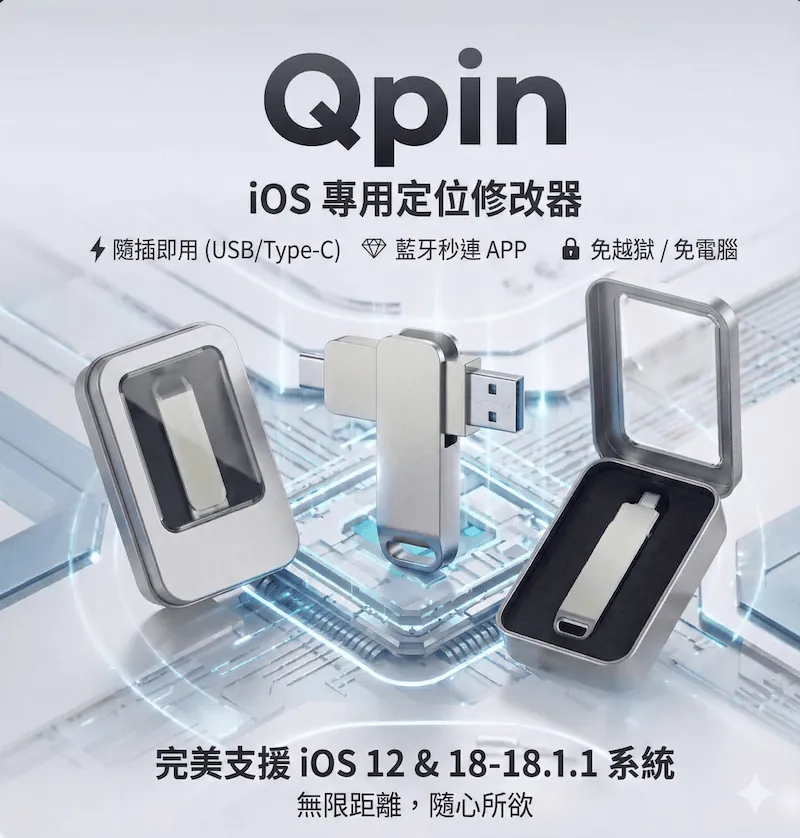
QPin is the most reliable solution for iPhone 16 GPS spoofing, offering native USB-C support.
Why QPin Works Best for iPhone 16:
- Native USB-C connection - no adapters needed
- Works on iOS 18 - 18.1.1
- No jailbreak required
- App-based control via Bluetooth
- Works with all location-dependent apps
Setup Process:
- Power QPin from a power bank, charger, or computer USB port
- Download QPin app from App Store
- Connect via Bluetooth in the app
- Select any location on the map
Method 2: Computer-Based Tools
Desktop applications can modify iPhone 16 location but have limitations:
Options:
- iTools (Windows/Mac)
- 3uTools (Windows)
- Tenorshare iAnyGo
Drawbacks:
- Requires constant computer connection
- USB-C cable needed
- Some apps may detect software spoofing
iPhone 16 Model Compatibility
USB-C Advantage for GPS Spoofing
The transition to USB-C on iPhone 16 brings several benefits for GPS spoofing:
Universal Connectivity
- Same port as MacBooks, iPads, and Android devices
- No need for special Lightning accessories
- Better data transfer speeds
Improved Power Delivery
- More stable power supply to external devices
- QPin receives consistent power for reliable operation
Future-Proof Solution
- All future iPhones will use USB-C
- One QPin device works across multiple devices
Common Use Cases for iPhone 16
Gaming
- Pokémon GO: Catch regional exclusives, access rare spawns
- Monster Hunter Now: Hunt in different zones worldwide
- Dragon Quest Walk: Explore various regions
Dating Apps
- Tinder: Match with people before traveling
- Bumble: Explore connections in new cities
- Hinge: Expand your dating radius
Privacy & Security
- Hide real location from tracking apps
- Protect privacy on social media
- Secure location data from advertisers
Professional Use
- Test location-based app features
- Manage delivery zones
- Access region-specific content
Step-by-Step Tutorial for iPhone 16
Step 1: Get QPin
Purchase QPin from the official website. It includes USB-C support out of the box.
Step 2: Power On QPin
Connect QPin to a power bank, charger, or computer USB port. Wait a few seconds for startup. If QPin-Xx does not appear in Bluetooth, reconnect power and try again.
Step 3: Install the App
Download the QPin control app from the App Store. It's free to download.
Step 4: Bluetooth Pairing
Open the app and tap "Connect Device". QPin will automatically pair via Bluetooth.
Step 5: Set Your Location
- Use the search bar to find a specific address
- Or tap anywhere on the map to set location
- Use joystick mode for precise movement
- Set up routes for automatic walking simulation
Step 6: Verify It Works
Open Apple Maps or any location-based app to confirm your new location is active.
Troubleshooting iPhone 16 GPS Spoofing
Issue: QPin-Xx Doesn't Appear in Bluetooth
- Disconnect and reconnect power
- Restart Bluetooth on your iPhone 16
- Try another USB power source
Issue: Location Not Changing in Apps
- Close and reopen the app
- Disable Wi-Fi temporarily
- Ensure QPin is powered on and paired
Issue: Bluetooth Won't Pair
- Enable Bluetooth in Settings
- Delete old QPin pairings and try again
- Update the QPin app to latest version
Issue: GPS Reverts to Real Location
- Keep QPin connected at all times
- Disable "Significant Locations" in Privacy settings
- Turn off Wi-Fi positioning
iPhone 16 vs Previous iPhones for GPS Spoofing
Best Practices for iPhone 16 Users
- Keep QPin Connected: Don't disconnect during location spoofing sessions
- Use Realistic Movements: Simulate walking (5 km/h) or driving (60 km/h) speeds
- Respect Cooldown Times: Important for games like Pokémon GO
- Update Firmware: Keep QPin firmware current for best compatibility
- Protect Your Account: Follow app terms of service to avoid bans
Conclusion
The iPhone 16's USB-C port makes GPS spoofing more convenient than ever. With QPin, you can easily change your location on iPhone 16, iPhone 16 Pro, or iPhone 16 Pro Max without jailbreak or computer dependency. Whether you're gaming, dating, or protecting your privacy, QPin provides a reliable hardware solution for all your location spoofing needs.
FAQ
هل يمكن تزوير GPS على iPhone 16؟
نعم، يمكن تزوير GPS على iPhone 16 باستخدام أجهزة مثل QPin. يتصل عبر USB-C ويعمل بدون jailbreak على iOS 18.
هل يعمل USB-C في iPhone 16 مع مزوّرات GPS؟
نعم، يدعم QPin منفذ USB-C في iPhone 16 بالكامل. فقط وصّله ويعمل فوراً بدون محولات.
هل تزوير GPS آمن على iPhone 16 Pro Max؟
نعم، تزوير GPS المعتمد على الأجهزة آمن لأنه لا يعدّل ملفات النظام ولا يتطلب jailbreak. لن يُبطل الضمان ولن يتلف جهازك.