دليل إعداد QPin Android: غيّر موقع iPhone بهاتف Android
دليل مرئي لإعداد QPin Android يوضح كيفية توصيل هاتف Android بـ iPhone عبر USB، ومنح الثقة وأذونات USB، وقفل موقع، والتحقق منه على خرائط iPhone، ومسح الموقع بأمان.
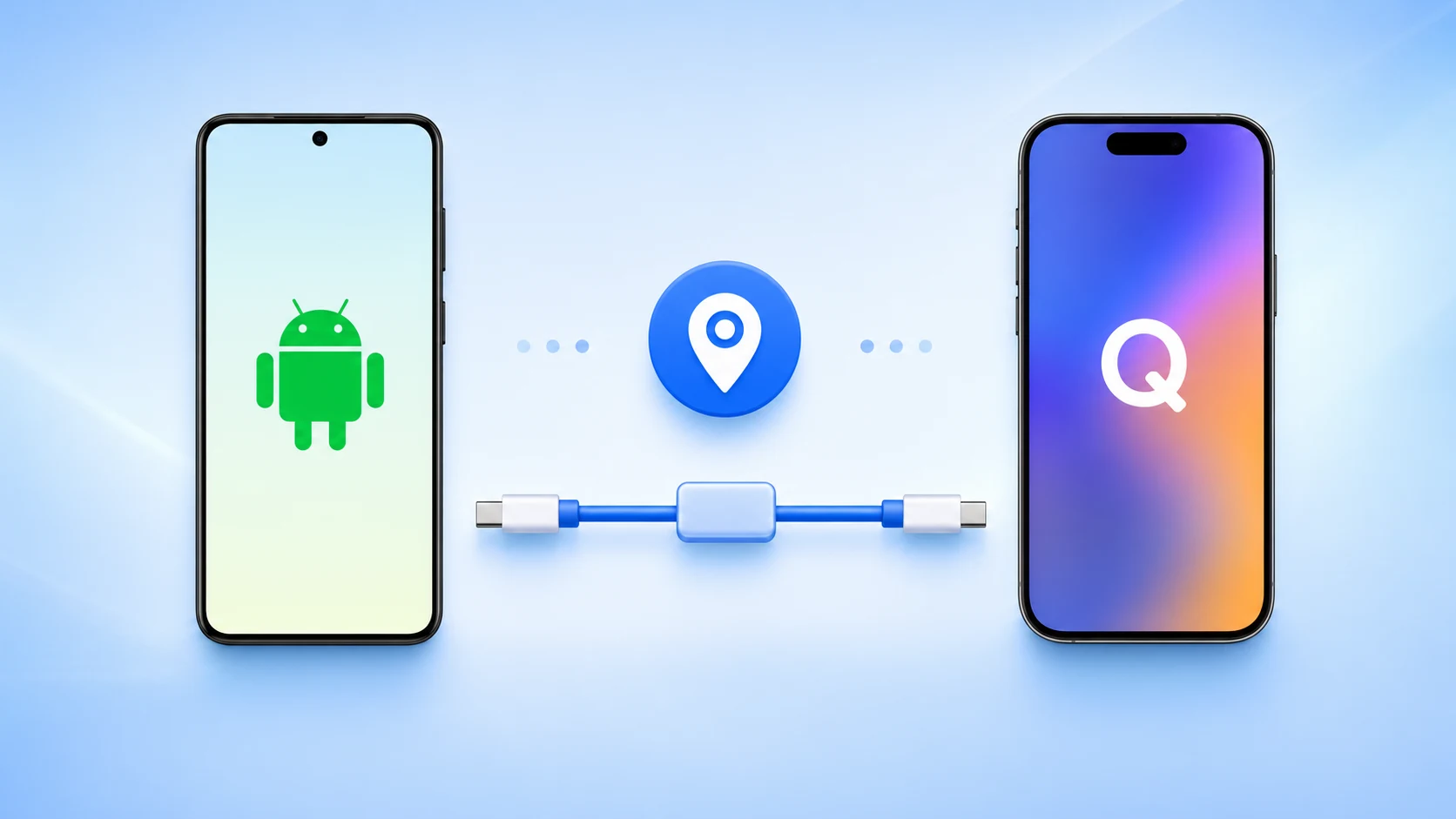
QPin Android lets an Android phone work as a USB controller for iPhone location workflows. The Android phone does not need to change its own GPS. It acts as the USB Host and sends the selected location to the connected iPhone.
This guide is based on real Android-side and iPhone-side screenshots. The first five screenshots show QPin Android. The last two screenshots show the iPhone map and the iPhone trust prompt.
Before you start
- Android 10 or later.
- Android phone with USB OTG / USB Host support.
- USB-C data cable. A charge-only cable will not work.
- iPhone unlocked during the first connection.
- Tap Trust on iPhone when the prompt appears.
QPin works at the iPhone system location level. Some apps may apply additional account, network, sensor, or policy checks.
Screenshot overview
Step 1: Open QPin Android
Open QPin Android and stay on the map screen. Before the connection is ready, the top status can show Activated and Waiting.
Step 2: Connect Android and iPhone by USB
Connect the Android phone and iPhone with a USB-C data cable. If your Android system asks which device controls USB, choose the connected device or host-side option so the Android phone can work as the controller.
Step 3: Trust this computer on iPhone
When the iPhone shows the Trust This Computer prompt, tap Trust. Without this step, QPin Android may not be able to communicate with the iPhone.
Step 4: Allow QPin USB permission on Android
Android may show a system permission prompt for QPin For Android to access the connected iPhone USB device. Tap confirm. This is required for USB communication.
Step 5: Wait for Connected, then select a location
When the connection is ready, QPin Android shows Activated and Connected. Search for a place, or drag the map center to the target point. Then tap Lock location or Lock again.
Step 6: Verify the iPhone location
Open a map app on the iPhone. The blue dot should move to the target location you selected in QPin Android.
Step 7: Check device status and logs
Use the Device panel to confirm USB connection, mode, target, and coordinates.
Use the Activity log panel to confirm that location commands were sent successfully.
How to clear location
When you finish, tap Clear location in QPin Android. If an app still shows an old location, close and reopen that app, disconnect the cable, or restart location services on the iPhone.
Troubleshooting
- If QPin does not detect the iPhone, use a data cable, unlock the iPhone, and reconnect.
- If the iPhone trust prompt does not appear, unplug and reconnect the cable, then keep the iPhone unlocked.
- If Android does not show USB permission, open Android USB settings and check USB control mode.
- If location is not updated in a third-party app, remember that some apps use additional checks beyond iOS system location.
Download or learn more on the QPin Android product page.
FAQ
هل يغيّر QPin Android موقع GPS في هاتف Android نفسه؟
لا. يستخدم QPin Android هاتف Android بوصفه مضيف USB ووحدة تحكم لجهاز iPhone المتصل. ولا يعتمد على الموقع الوهمي أو GPS في Android.
لماذا يعرض Android طلب إذن USB؟
يشترط Android أن يطلب التطبيق الإذن قبل الاتصال بجهاز USB متصل. وافق على الرسالة حتى يتمكن QPin من الوصول إلى واجهة USB الخاصة بـ iPhone.
ماذا أفعل إذا لم يتم اكتشاف iPhone؟
استخدم كابل بيانات، وافتح قفل iPhone، واضغط على «وثوق»، واسمح لـ QPin بالوصول إلى USB، ثم تحقق من ضبط التحكم في USB على الجهاز المتصل أو وضع المضيف في Android.