Apple Find My Location Privacy: What iPhone Users Can Control
A practical Find My privacy guide for iPhone users: personal sharing, Safety Check, Live Location, Find My network, AirTag tracking alerts, and system-level location control boundaries.
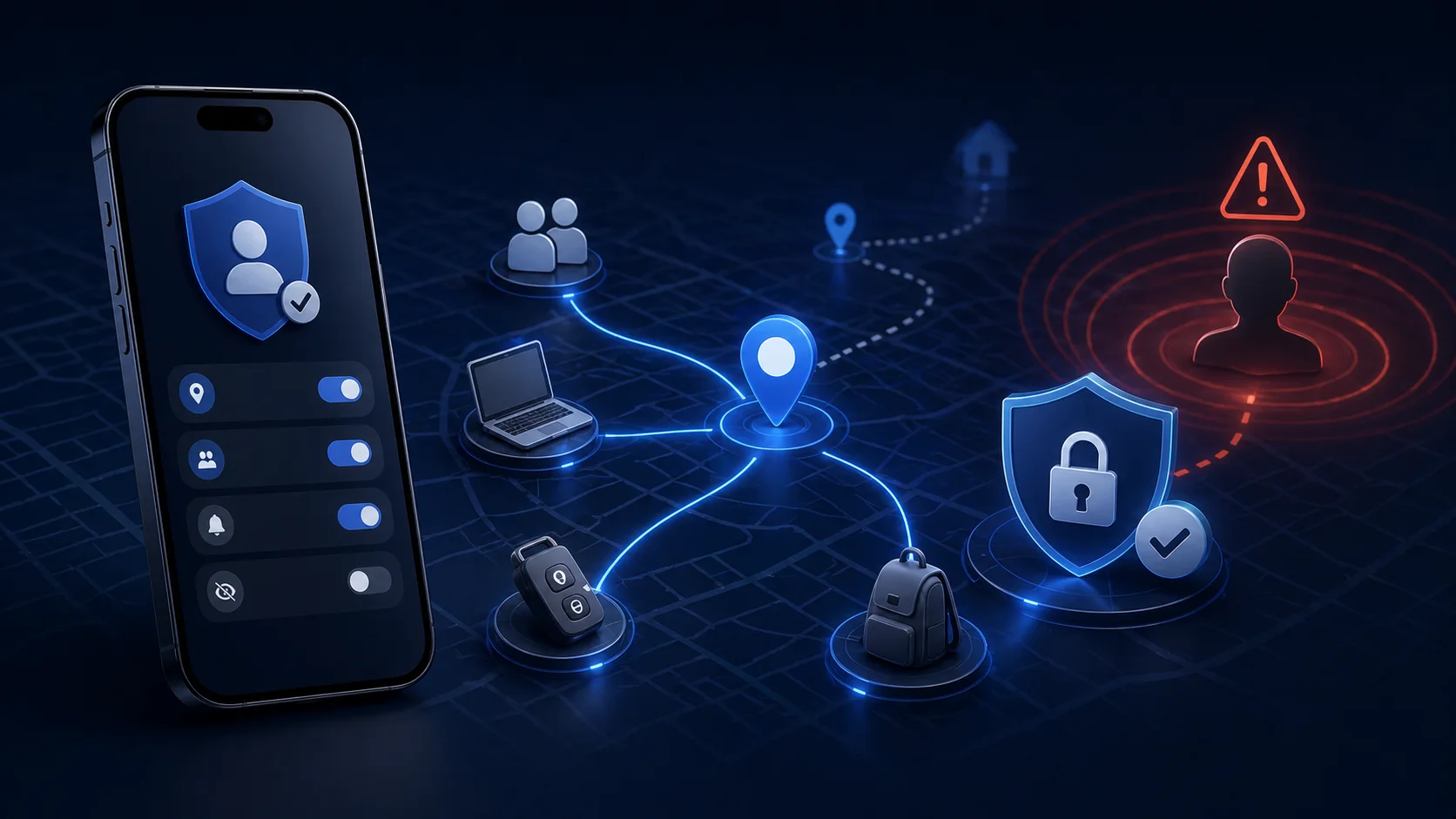
Apple Find My Location Privacy: What iPhone Users Can Control
Find My is one of the most powerful location features in the Apple ecosystem. It helps you find people, devices, AirTags, and compatible items. It can also expose sensitive routines if you forget who can see your location or which device is sharing it.
Quick answer: review Find My sharing, stop sharing with specific contacts when needed, use Safety Check if personal safety is at risk, understand the difference between personal sharing and the Find My network, and pay attention to unwanted tracking alerts.
Managing Personal Sharing
Apple lets you stop sharing your location with a specific person or hide your location from everyone. Apple also states that when you stop sharing with someone, that person will not be notified.
Official source: Apple: Share your location with iPhone.
Review:
- Open Find My.
- Tap People.
- Select who can see your location.
- Stop sharing where appropriate.
- Tap Me and confirm whether Share My Location is on.
- Confirm which device is sharing your location.
Find My Network vs Live Location Sharing
These are not the same thing.
Do not assume changing one setting controls every layer.
Safety Check
If personal safety is at risk, Apple recommends Safety Check. It helps quickly review and stop sharing with people and apps.
Use Safety Check when:
- You are leaving an unsafe relationship.
- Someone may have access to your Apple ID or devices.
- You do not know who can see your location.
- You need a fast privacy reset.
Anti-Stalking Features and AirTag Alerts
Apple provides unwanted tracking alerts for AirTag, AirPods, Find My network accessories, and compatible Bluetooth trackers. If you receive an alert, treat it seriously.
Official source: Apple: What to do if you get an unwanted tracking alert.
Basic steps:
- Do not ignore the alert.
- Check the map and timeline shown in the alert.
- Play a sound if available.
- Use Apple's instructions to identify or disable the tracker.
- Contact local law enforcement if you feel unsafe.
Where QPin Fits and Where It Does Not
Find My is a safety-critical Apple feature. QPin should not be positioned as a way to defeat safety systems. Its appropriate role is broader iPhone location control for privacy-conscious users, QA testing, demos, and location-based app workflows.
QPin works at the iOS system location level in supported setups. Some apps and Apple services may apply additional checks, and emergency/safety features should be handled responsibly.
QPin does not replace Apple's Find My, Safety Check, unwanted tracking alerts, or emergency location features.
What QPin Can and Cannot Do
QPin can help control the iPhone system location layer in supported setups for privacy, QA testing, demos, and authorized workflows. QPin cannot guarantee that every app will accept the location, cannot replace the app's official privacy settings, and cannot prevent account, network, sensor, or policy checks. Do not use location tools for fraud, harassment, impersonation, or safety abuse.
Conclusion
Find My gives iPhone users real control, but only if they review it. Check People, Me, Safety Check, devices, AirTags, and unwanted tracking alerts. For broader system-level location testing, QPin can be useful, but Find My privacy starts with Apple's native controls.
FAQ
Can I stop sharing my iPhone location with one person?
Yes. Apple says you can stop sharing with a specific person in Find My, Messages, or Maps. Apple also says the person will not be notified when you stop sharing.
Does Find My include anti-stalking protections?
Yes. Apple provides unwanted tracking alerts and guidance for AirTag, AirPods, Find My network accessories, and compatible Bluetooth trackers.