QPin Android Setup Guide: Change iPhone Location with an Android Phone
A visual QPin Android setup guide showing how to connect an Android phone to an iPhone by USB, grant trust and USB permissions, lock a location, verify it on iPhone maps, and clear the location safely.
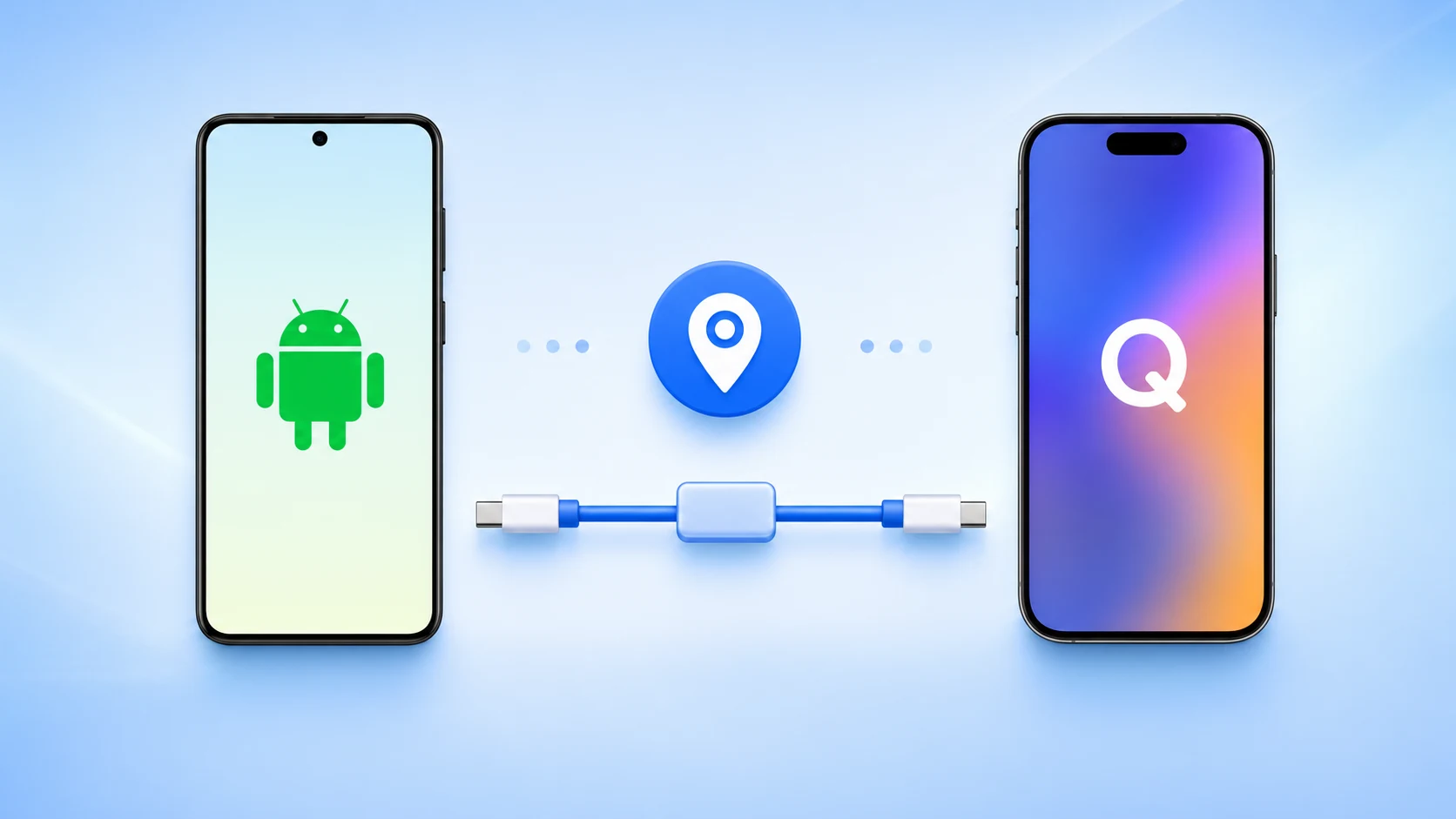
QPin Android lets an Android phone work as a USB controller for iPhone location workflows. The Android phone does not need to change its own GPS. It acts as the USB Host and sends the selected location to the connected iPhone.
This guide is based on real Android-side and iPhone-side screenshots. The first five screenshots show QPin Android. The last two screenshots show the iPhone map and the iPhone trust prompt.
Before you start
- Android 10 or later.
- Android phone with USB OTG / USB Host support.
- USB-C data cable. A charge-only cable will not work.
- iPhone unlocked during the first connection.
- Tap Trust on iPhone when the prompt appears.
QPin works at the iPhone system location level. Some apps may apply additional account, network, sensor, or policy checks.
Screenshot overview
Step 1: Open QPin Android
Open QPin Android and stay on the map screen. Before the connection is ready, the top status can show Activated and Waiting.
Step 2: Connect Android and iPhone by USB
Connect the Android phone and iPhone with a USB-C data cable. If your Android system asks which device controls USB, choose the connected device or host-side option so the Android phone can work as the controller.
Step 3: Trust this computer on iPhone
When the iPhone shows the Trust This Computer prompt, tap Trust. Without this step, QPin Android may not be able to communicate with the iPhone.
Step 4: Allow QPin USB permission on Android
Android may show a system permission prompt for QPin For Android to access the connected iPhone USB device. Tap confirm. This is required for USB communication.
Step 5: Wait for Connected, then select a location
When the connection is ready, QPin Android shows Activated and Connected. Search for a place, or drag the map center to the target point. Then tap Lock location or Lock again.
Step 6: Verify the iPhone location
Open a map app on the iPhone. The blue dot should move to the target location you selected in QPin Android.
Step 7: Check device status and logs
Use the Device panel to confirm USB connection, mode, target, and coordinates.
Use the Activity log panel to confirm that location commands were sent successfully.
How to clear location
When you finish, tap Clear location in QPin Android. If an app still shows an old location, close and reopen that app, disconnect the cable, or restart location services on the iPhone.
Troubleshooting
- If QPin does not detect the iPhone, use a data cable, unlock the iPhone, and reconnect.
- If the iPhone trust prompt does not appear, unplug and reconnect the cable, then keep the iPhone unlocked.
- If Android does not show USB permission, open Android USB settings and check USB control mode.
- If location is not updated in a third-party app, remember that some apps use additional checks beyond iOS system location.
Download or learn more on the QPin Android product page.
FAQ
Does QPin Android change the Android phone's own GPS?
No. QPin Android uses the Android phone as a USB Host and controller for the connected iPhone. It does not depend on Android mock location or Android GPS.
Why does Android show a USB permission prompt?
Android requires an app to request permission before communicating with a connected USB device. Confirm the prompt so QPin can access the iPhone USB interface.
What should I do if the iPhone is not detected?
Use a data cable, unlock the iPhone, tap Trust, allow QPin USB permission, and check that the Android USB control mode is set to the connected device or host side.