QPin Hardware Manual: Connect, Pair, Change Location, and Restore Real GPS
A practical QPin hardware manual covering first-time preparation, Bluetooth pairing, location change, movement modes, recovery, and common troubleshooting.
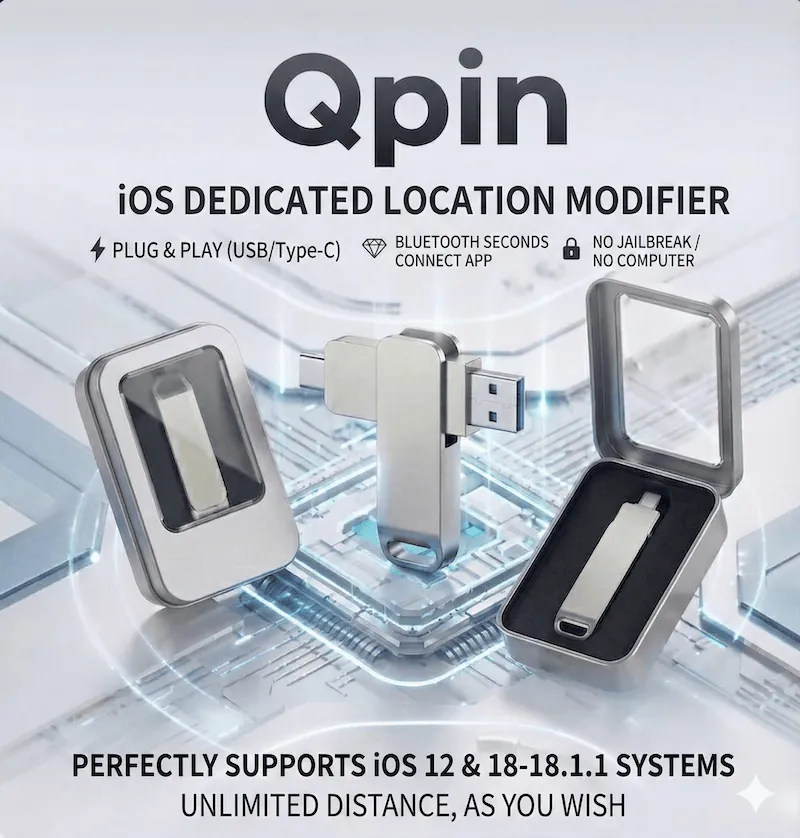
QPin Hardware Manual
This guide is for QPin hardware users. It focuses on the real first-use flow: power the device, pair QPin-Xx, set your first location, use movement tools, and restore the real GPS when you finish.
Before first use
Prepare these items:
- Your iPhone
- The QPin hardware device
- The QPin companion app
- Bluetooth enabled on the iPhone
- A stable USB power source such as a power bank, charger, or computer USB port
For first-time setup, keep the iPhone unlocked and make sure the device is already connected to a stable power source before pairing.
Step 1. Power the hardware
Power QPin from a power bank, wall charger, or a computer USB port, then wait a few seconds for initialization.
At this stage, you are only supplying power to the hardware so it can boot and be discovered over Bluetooth.
Wait a few seconds for the device to finish booting.
If QPin-Xx still does not appear in Bluetooth, reconnect the power source before moving to the next step.
Step 2. Pair QPin-Xx by Bluetooth
Turn on Bluetooth on the iPhone, then open the QPin app or iOS Bluetooth settings and look for QPin-Xx.
If the device does not appear:
- Reconnect the hardware
- Keep the iPhone unlocked
- Turn Bluetooth off and on again
- Scan again from the app
Step 3. Set your first location
Open the map, search for a city, address, or coordinate, and choose the point you want. Confirm the location change in the QPin app, then open the target app and verify that it is already reading the new GPS position.
For the most stable first test, start with a fixed-point location change before using advanced movement tools.
Quick text guide
- Power the QPin hardware from a stable USB source.
- Turn on Bluetooth on the iPhone and connect to QPin-Xx.
- Open the QPin app. After Bluetooth reconnects automatically, you can start using location change.
Distance rules and long-distance workflow
iOS 12 and iOS 18 to 18.1.1 are not limited by the long-distance rule below.
On other iOS versions:
- Fixed-point changes within 10 km can usually be applied directly
- For locations beyond 10 km, use this workflow
- Lock the target location first
- Disconnect the network
- Turn Location Services off, wait about 2 seconds, then turn it back on
- Reconnect the network
- When the blue dot appears in any map app, the device-wide location change has taken effect
For the video walkthrough, use the QPin Video Tutorials page. The Brook and no-distance-limit tutorial is included there.
Step 4. Use movement modes carefully
QPin hardware supports more than a single static point. In normal use:
- Use fixed-point mode for fast location switching
- Use joystick for short manual movement
- Use route or GPX tools for continuous travel simulation
If you are using a location-sensitive app, start with small moves and verify each change before making longer jumps.
How to restore the real location
When you finish using QPin:
- Disconnect the hardware
- Restart the iPhone
- Reopen the target app if it still shows the previous point
After restart, the system should return to the real GPS location.
Troubleshooting
QPin is connected but the app does not change location
- Confirm Bluetooth is still connected
- Confirm the target point was actually applied inside the QPin app
- Close and reopen the target app
- Restart the iPhone and try again
The connection drops often
- Reseat the hardware
- Avoid loose adapters or unstable connectors
- Keep the phone from entering a disruptive low-power state during setup
Notes
- Keep the hardware connected while you need the modified location
- Keep Bluetooth on during use
- Follow local laws and the terms of the destination app
- If you purchased the software version instead, use the QPin Desktop for macOS guide
FAQ
Which iPhones and iOS versions can use QPin hardware?
QPin hardware is designed for supported iPhone/iPad and iOS setups. Current public materials commonly reference iOS 12 through iOS 18.1.1. If you use a newer device or system build, verify compatibility with support before purchase or deployment.
Do I need a computer or jailbreak to use QPin hardware?
No. The hardware workflow is designed to work without jailbreak and without a Mac or PC running during normal use.
What should I do if QPin-Xx does not appear in Bluetooth?
Reconnect the hardware, keep the iPhone unlocked, toggle Bluetooth off and on, then scan again from the QPin app or iOS Bluetooth settings. If needed, restart the iPhone and retry.
Does QPin need to stay connected during use?
Yes. To keep the modified GPS active, keep the hardware connected and maintain a stable Bluetooth session while you are using the target app.