How to Make My Snapchat Location Different to My Actual Location
Need your Snapchat Snap Map location to stay at home while you travel? Learn Ghost Mode limits, iPhone location behavior, and how QPin can set a different system GPS location for Snapchat.
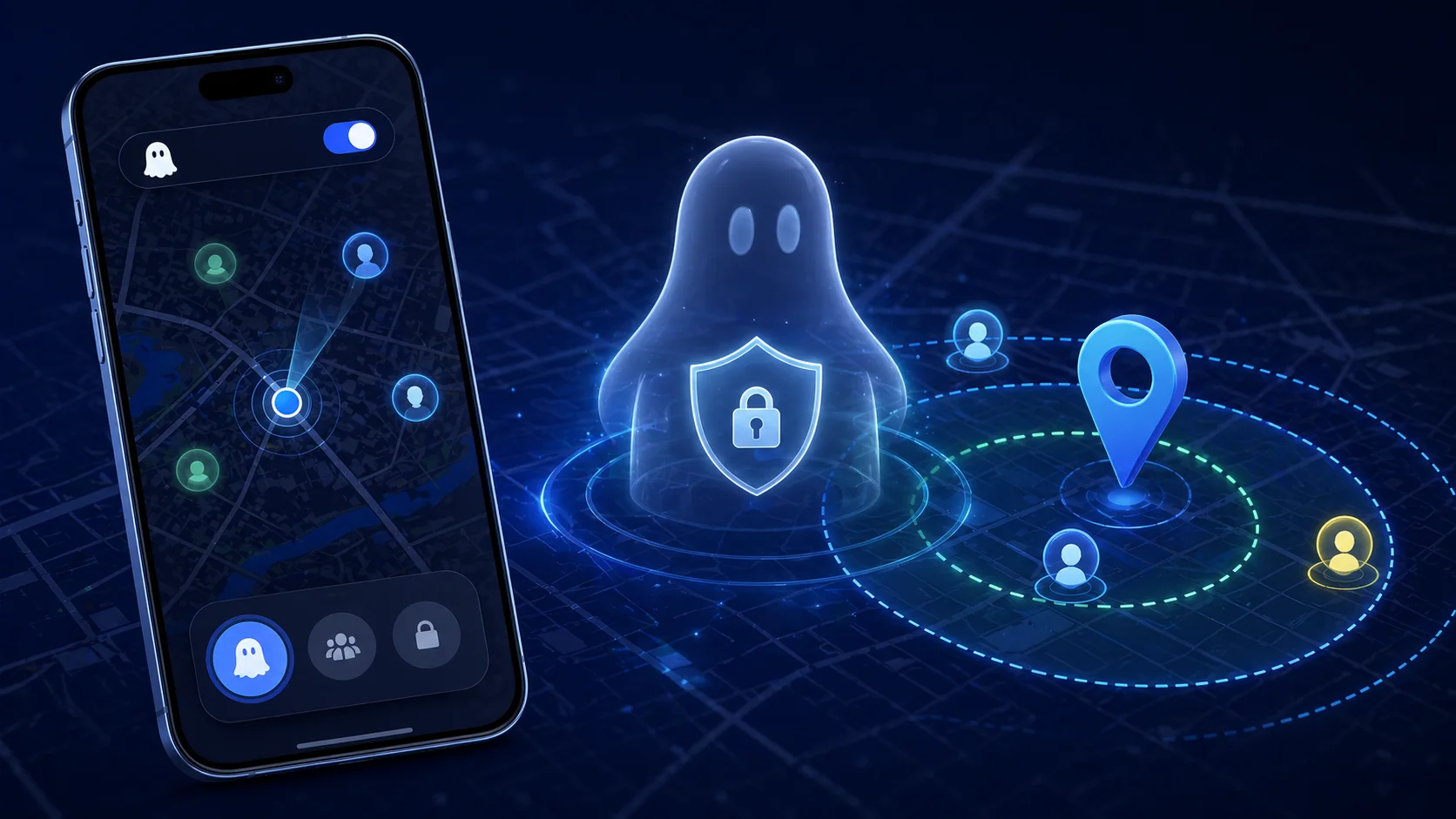
How to Make My Snapchat Location Different to My Actual Location
Here is the situation many Snapchat users search for: you are in a long-distance relationship, you are planning a surprise visit, and your Snap Map is already turned on. If you suddenly switch off location sharing, it may look unusual. If you keep using Snapchat during the trip, Snap Map may update from your home to the airport, train station, or the city you are secretly heading to.
So the practical question is not only "how do I hide my location on Snapchat?" It is more specific: how can I make my Snapchat location different to my actual location on iPhone, while keeping Snap Map looking normal?
The short answer: Ghost Mode hides you, but it does not make you appear somewhere else. If you want Snapchat to continue reading a stable home location while your physical iPhone is traveling, you need a system-level iPhone location workflow. QPin can set the iPhone's GPS location to a selected coordinate, such as your home, so apps that read iOS system location can reflect that selected location.
QPin is not affiliated with Snapchat or Snap Inc. Use location tools only for your own device, privacy, testing, demos, and consensual scenarios. Do not use them for harassment, impersonation, stalking, or safety abuse.
Why Snap Map Changes When You Travel
Snap Map does not work like a social media bio that you edit manually. It depends on your phone's location layer. On iPhone, Snapchat can request iOS Location Services when permission is granted. Depending on your settings, your location may update when you open Snapchat, when background location is allowed, or when a Snap Map-related feature refreshes.
That means a surprise trip can be exposed by small actions:
- Opening Snapchat while waiting at the airport.
- Replying to a Snap while sitting on a train.
- Posting a story with station signs or airport gates in the background.
- Leaving background location access enabled.
- Keeping Precise Location on when you only wanted approximate sharing.
If your goal is to keep Snap Map showing home, simply avoiding the map screen may not be enough. Snapchat can still use system location when the app is active and permitted to access location.
Ghost Mode vs. Changing Your Snapchat Location
Ghost Mode is the official Snapchat privacy feature. Snapchat says Ghost Mode stops other people from seeing your location on Snap Map, although your location may still be shared with Snap. Official reference: Snapchat Ghost Mode.
Ghost Mode is useful when you want to disappear from the map. But in the surprise-visit scenario, disappearing may be the exact thing you want to avoid. If friends or a partner usually see your Bitmoji on the map and it suddenly vanishes, that change can create questions.
Changing the iPhone system location is different. Instead of hiding Snap Map visibility, QPin changes the GPS coordinate that iOS provides to apps. When Snapchat reads system location in normal workflows, it can see the selected test location rather than the physical place where the phone is sitting.
Best Workflow: Keep Snapchat Showing Home During a Surprise Trip
For the long-distance relationship scenario, the cleanest workflow is to prepare before you leave. Do not wait until you are already inside an airport terminal or train station with Snapchat open.
- Choose the home coordinate you want Snap Map to show.
- Connect your iPhone to QPin Desktop on Mac/Windows, or use QPin Hardware if you need a portable setup.
- Set the iPhone system GPS location to your home address or a nearby safe coordinate.
- Open Apple Maps first and confirm the blue dot is stable at home.
- Force close Snapchat, then reopen it after the system location is stable.
- Keep the QPin workflow active while you use Snapchat during the trip.
- Avoid posting Snaps that visually reveal the real airport, train, hotel, road signs, gate numbers, or timestamps.
This is the key conversion point: QPin changes the iPhone's system-level GPS location, not just a label inside Snapchat. That means the workflow is not limited to Snap Map. Apps that rely on iOS system GPS may reflect the location selected through QPin, while each app can still apply its own account, network, sensor, and safety checks.
Why QPin Works Better Than "Just Don't Open Snapchat"
Some people handle this by not opening Snapchat at all during the trip. That works only if you can realistically stay offline. For many couples, Snapchat is the primary communication channel. Going silent for hours may be more suspicious than a stable map.
QPin gives you a more controlled option:
- You can keep talking on Snapchat while your iPhone system location stays at the chosen coordinate.
- You can test the location in Apple Maps before opening Snapchat.
- You do not need to jailbreak the iPhone.
- You can use a desktop USB workflow or a portable hardware workflow.
- You can return to real GPS after the surprise is over.
For this type of privacy workflow, the goal is not to modify Snapchat itself. QPin works at the iPhone system location layer, so Snapchat is still installed normally from the App Store.
Important iPhone Settings to Check
Before relying on any Snap Map workflow, check these settings on your iPhone:
- Snapchat location permission: Settings > Privacy & Security > Location Services > Snapchat.
- Precise Location: If enabled, Snapchat can receive more accurate GPS data.
- Background App Refresh: If enabled, Snapchat may update more often.
- Snap Map visibility: Confirm who can see you.
- Public Snap Map posts: Do not submit content that reveals your real location.
If you use QPin to set your location to home but then post a video clearly showing an airport gate, the visual content can give away the trip. Location privacy is not only GPS. It also includes photos, captions, timestamps, landmarks, and habits.
When You Should Use Ghost Mode Instead
QPin is useful when you want a different system location. Ghost Mode is better when you simply do not want anyone to see where you are.
Use Ghost Mode if:
- You are not trying to keep a normal home location visible.
- You want a direct privacy setting inside Snapchat.
- You do not need to keep chatting while maintaining a map presence.
- You are dealing with safety pressure, coercion, or someone demanding constant tracking.
If someone is forcing you to share location, prioritize safety and trusted support. Location tools should not replace personal safety planning.
QPin Setup for Snapchat Location Control
QPin supports iPhone location workflows for users who need controlled, system-level location changes:
- QPin Desktop: connect your iPhone to Mac or Windows with USB, choose a coordinate on the map, and apply it to the iPhone system location.
- QPin Hardware: use a portable external device for location workflows when you do not want to keep a computer nearby.
- No jailbreak required: the workflow is designed for supported iOS setups without modifying Snapchat.
For related setup instructions, see the QPin Desktop guide and the QPin Hardware manual. To compare product options, visit the QPin product page.
FAQ
Can I make my Snapchat location different to my actual location? Yes. With QPin, you can set your iPhone system GPS location to a different coordinate. When Snapchat reads iOS system location in normal Snap Map workflows, it can reflect that selected location.
Can I keep Snapchat showing home while I travel? In a supported QPin workflow, set the iPhone location to home before opening Snapchat, verify it in Apple Maps, then use Snapchat after the location is stable.
Should I turn off Snapchat completely during the trip? If you do not want to use any tool, staying off Snapchat is the simplest option. If you need to keep chatting, QPin gives you a controlled system-location workflow.
Does QPin modify Snapchat? No. QPin does not modify Snapchat's app code. It changes the iPhone system location in supported workflows.
Can Snapchat still apply other checks? Yes. Any app can apply its own account, network, device, and safety logic. QPin controls the iOS system location layer; it does not control Snapchat's internal policies.
Conclusion
If your search is "how to make my Snapchat location different to my actual location," the answer depends on the outcome you want. Ghost Mode hides you. Staying off Snapchat avoids updates. QPin lets you set a different iPhone system GPS location, such as home, so Snap Map can keep reading a stable selected location while you travel.
For a surprise visit, prepare the location before leaving, verify it in Apple Maps, keep your visual posts clean, and return to real GPS when the surprise is over.
FAQ
Can I make my Snapchat location different to my actual location on iPhone?
Yes, in supported workflows QPin can set a different iPhone system GPS location. Apps that read iOS system location, including Snapchat in normal Snap Map workflows, can reflect the selected test location, although Snapchat may still apply its own account and safety checks.
Can I keep Snap Map showing home while I am at an airport or on a train?
The clean workflow is to set the iPhone system location to your home coordinate before opening Snapchat, verify the location in Apple Maps, then open Snapchat after the location is stable. Do not post Snaps that visually reveal your real airport, station, or train location.
Is turning on Ghost Mode the same as changing my Snapchat location?
No. Ghost Mode hides your location from friends on Snap Map. QPin changes the iPhone system GPS location so apps can read a different location. These solve different problems.