Fix DoorDash GPS Not Accurate: No Jailbreak Location Change Hardware
DoorDash GPS not accurate on iPhone? Learn address fixes, zone-map checks, iOS settings, and how QPin sets a stable system GPS coordinate.
DoorDash GPS Not Accurate on iPhone: Causes, Address Fixes, and QPin Hardware
When DoorDash GPS is not accurate on iPhone, the problem is not always the same. Sometimes the saved delivery address is wrong. Sometimes the DoorDash map pin is stale. Sometimes the Dasher zone map is reading a weak GPS signal. Sometimes iOS Location Services is reporting the wrong phone position.
This guide combines the practical DoorDash address-change workflow with iPhone GPS troubleshooting and QPin hardware testing. The short version: fix the address first, check iOS location settings second, then use QPin when you need a stable system-level GPS coordinate for owned-device testing or controlled location workflows.
QPin is not affiliated with DoorDash or any delivery platform. Users should follow the rules of the apps and platforms they use. QPin changes the iPhone system location in supported setups; DoorDash still controls orders, account status, timing, demand, and platform-side checks.
What DoorDash location means
DoorDash uses location in more than one way. Customer-side location usually means the delivery address: where food should be sent, which restaurants are nearby, and whether a merchant can deliver to that area. Driver-side location usually means the iPhone's current GPS position: Dash Zone context, pickup-pin proximity, drop-off movement, and the route between points.
That difference matters. If your food is going to the wrong place, you may need to change the delivery address in the DoorDash app or website. If your blue dot jumps across the street, sits outside a shopping center, or shows you outside a Dash Zone, you are dealing with iPhone GPS accuracy. If you need to reproduce the same coordinate repeatedly, QPin hardware can set the iPhone system location to a selected coordinate.
DoorDash screens that depend on iOS Location Services read the iPhone system location. In supported setups, QPin changes that system location, so DoorDash reads the QPin-selected coordinate for map and zone context.
DoorDash zones and nearby-location logic
DoorDash may show different map and zone states depending on the area. Driver zone maps often use color intensity to communicate business level, from inactive or low-demand areas to busier zones. A gray area can mean little or no current need, while pink or red areas can indicate more activity.
If DoorDash GPS is not accurate, the app can place the phone in the wrong zone or near the wrong merchant cluster. Around malls, downtown blocks, restaurant rows, airports, stadiums, and dense apartment complexes, GPS can drift enough that a phone appears outside the expected pickup area even when the user is physically nearby.
Before assuming the app is broken, separate three things:
- Delivery address: the saved address used by the customer app.
- iPhone GPS position: the coordinate iOS reports to apps.
- DoorDash platform logic: zones, demand, account status, timing, and app-side checks.
Change a DoorDash delivery address in the app or website
If the location problem is a customer delivery address, start inside DoorDash before touching GPS tools.
In the DoorDash app:
- Open DoorDash and go to the home screen.
- Tap the address or location area near the top of the screen.
- Enter a new address or choose an address found by location services.
- Confirm apartment number, unit, entrance, and delivery instructions.
- Review whether the order should be left at the door, handed to you, or handled with another instruction.
On the DoorDash website:
- Go to DoorDash.com and log in.
- Confirm you are ordering for delivery, not pickup.
- Check the address shown near the top or left side of the order flow.
- Choose a saved address or enter a new one.
- Confirm delivery time and instructions before placing the order.
This fixes address-location mistakes. It does not fix iPhone GPS drift. If Apple Maps and DoorDash both show the phone in the wrong place, continue with iOS location troubleshooting.
Fix iPhone GPS accuracy for DoorDash
Start with the basics:
If the problem repeats only at one store, document the address, entrance, parking lot, screenshots, time, and network state. If it happens everywhere, focus on iPhone settings, iOS version, DoorDash app version, and device hardware.
Use QPin hardware when DoorDash needs a stable iPhone location
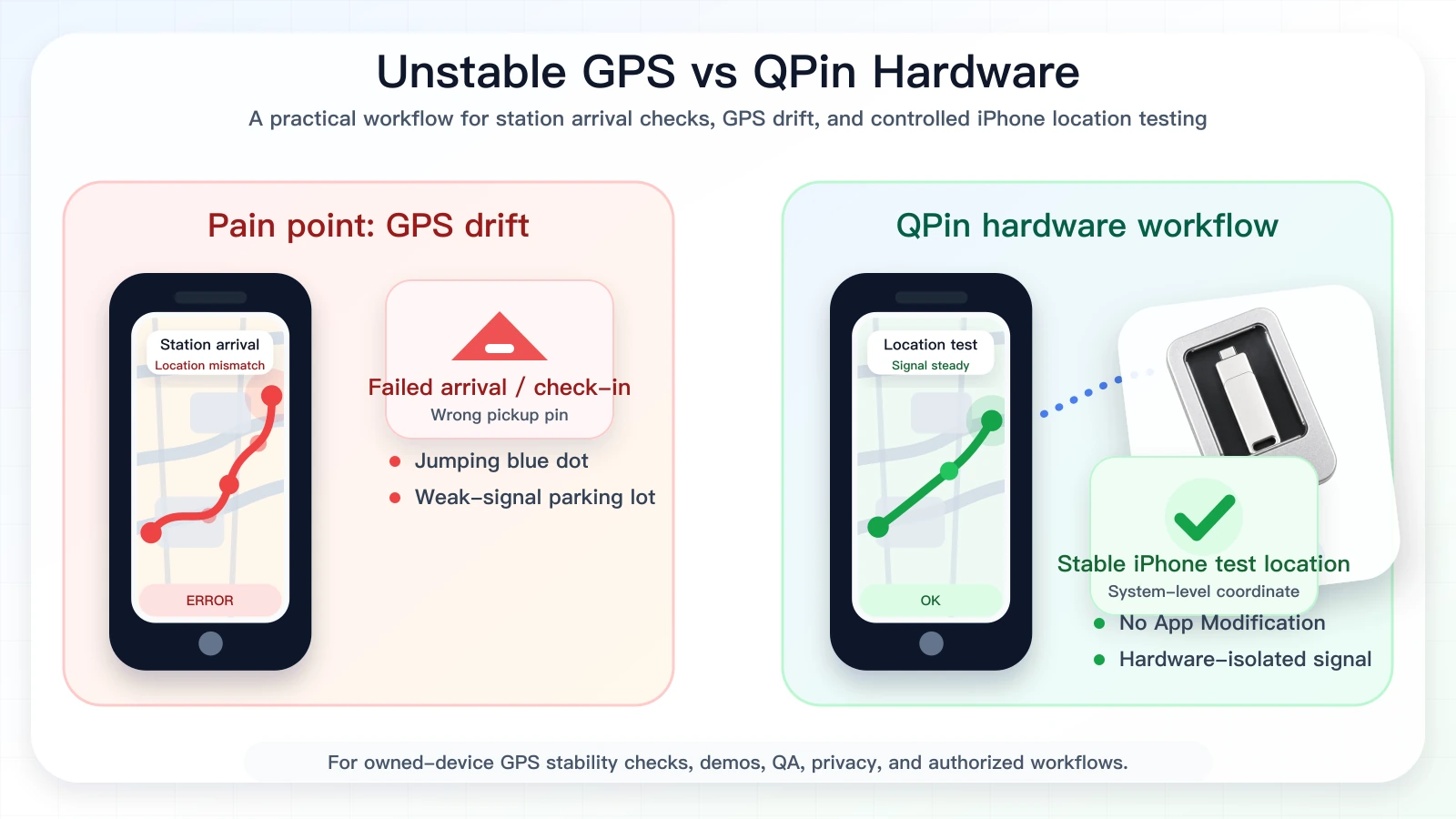
Some online guides recommend software-only location changers for DoorDash. QPin takes a different approach: it uses hardware to change the iPhone system location without jailbreaking the phone and without modifying DoorDash.
QPin is useful when you need to:
- Set an owned iPhone to a known coordinate.
- Keep the coordinate stable while testing.
- Compare Apple Maps and DoorDash against the same system location.
- Reproduce Dash Zone edge behavior, merchant-pin drift, or pickup-location issues.
- Test location-based app behavior without editing the app package.
Because QPin works at the iOS system-location layer, DoorDash screens that read iOS Location Services receive the selected coordinate as the phone location. DoorDash can still apply its own demand, account, timing, network, sensor, and policy logic.
How to change the iPhone location DoorDash reads with QPin
- Confirm the issue in Apple Maps and DoorDash first.
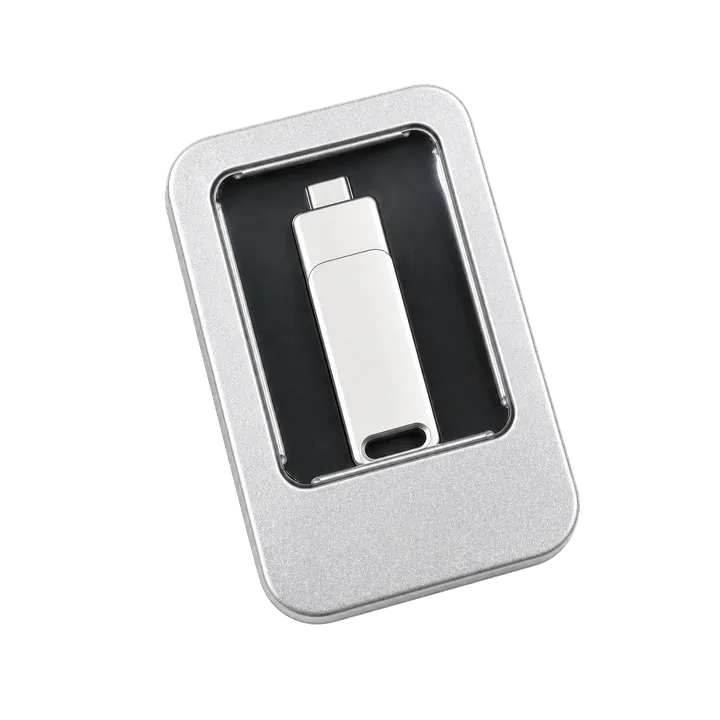
- Connect QPin hardware or use QPin Desktop with the macOS/Windows setup guide.
- Search for a restaurant area, Dash Zone edge, pickup pin, or exact coordinate.
- Apply that coordinate to the iPhone system location.
- Open Apple Maps and confirm the phone shows the selected position.
- Open DoorDash and check the map, zone, pickup, or address screen.
- Save screenshots if you are documenting a GPS issue.
- Stop the simulation and return to real GPS after testing.
For portable controlled testing, review the QPin Hardware Manual. For broader comparison, see DoorDash fake location and iPhone GPS testing.
FAQ
Why does DoorDash show the wrong location on iPhone?
The common causes are disabled Precise Location, weak signal, stale Wi-Fi or cellular assistance data, wrong saved address, map-pin errors, VPN mismatch, or app-side checks.
Can QPin change the location DoorDash reads?
Yes. In supported setups, QPin changes the iPhone system location. DoorDash screens that depend on iOS Location Services read that selected coordinate as the phone location.
Does QPin guarantee DoorDash order results?
No. QPin changes the iPhone GPS coordinate. DoorDash still controls order availability, account state, demand, timing, and platform-side decisions.
Should I change the DoorDash address or the iPhone GPS?
If the delivery address is wrong, change the address in DoorDash. If the phone location itself is wrong, troubleshoot iOS GPS or use QPin for controlled system-location testing.
Related guides
- Change DoorDash location without jailbreak
- DoorDash location keeps jumping on iPhone
- Best iPhone GPS stability tool for delivery and ride-hailing drivers
- QPin Desktop for Mac and Windows
- QPin Hardware Manual
- iPhone GPS jumping or drifting fixes
FAQ
Why is DoorDash GPS not accurate on iPhone?
Common causes include disabled Precise Location, weak signal near malls or high-rises, stale Wi-Fi/cellular assistance data, wrong delivery addresses, merchant pin errors, and app-side checks.
Can I change the location DoorDash reads on iPhone?
Yes. QPin hardware changes the iPhone system location in supported setups, so DoorDash screens that depend on iOS Location Services read the selected coordinate.
How do I change a DoorDash delivery address?
In the DoorDash app, tap the address/location area near the top of the home screen, enter a new address, confirm details, and review delivery instructions. On the website, log in and change the delivery address near the order controls.
Does QPin guarantee DoorDash orders?
No. QPin controls the iPhone system GPS coordinate. DoorDash controls order availability, account state, timing, demand, and platform-side decisions.