Can I Change My Zone in Spark Driver? The Ultimate Guide for 2026
Can I change my zone in Spark Driver? Learn official zone switching, Walmart hotspot research, GPS drift fixes, and how QPin modifies iPhone location.
Can I Change My Zone in Spark Driver? Everything You Need to Know About Switching Locations
If you drive for Spark Driver, one of the most common questions is: "Can I change my zone?" The short answer is yes. Spark Driver includes an in-app way to switch your working zone. The more important answer is that changing zones is only the first step. Serious drivers also need to understand Walmart Hotspots, proximity, curbside pickup GPS, market saturation, and iPhone location stability.
In 2026, Spark Driver is more competitive than ever. A neighboring zone may show better demand. A different Walmart may look more active. A driver may travel, move to a new city, or simply want to compare multiple markets before burning gas. That is why "Spark Driver change zone", "Spark Driver Hotspot Guide", and "Walmart curbside GPS fix" are high-intent searches.
This guide covers the official way to change your Spark Driver zone, why zone changes alone do not solve every problem, and how QPin Hardware can help you research new areas and stabilize the iPhone GPS coordinate that Spark Driver reads through iOS Location Services.
QPin is not affiliated with Spark Driver, Walmart, Sam's Club, DoorDash, Uber Eats, Amazon Flex, Uber, Lyft, or any delivery platform. Users should follow the rules of the apps and platforms they use. QPin can modify the iPhone system location in supported setups; Spark Driver and Walmart still control offers, account status, store capacity, arrival rules, geofences, network checks, sensor checks, and policy decisions.
The official way: how to change your zone in the Spark Driver app
Changing your zone is a built-in Spark Driver workflow. The exact labels can vary by app version and market, but the usual flow looks like this:
- Open the Spark Driver app.
- Go to the Settings, More, or profile menu.
- Find the Change Zone option.
- Enter the ZIP code or city name for the target area.
- Select the desired zone from the list.
- Confirm the change and wait for the app to refresh.
After switching, you should expect the app to focus on the selected zone. You may be able to switch back later, but market capacity, driver availability, account state, and app-side rules can affect what options are available. If the zone is full or quiet, changing the zone does not automatically create offers.
That is the part many new drivers miss. The app setting changes the working area. It does not guarantee that the new area has demand, available Walmart stores, active hotspots, or immediate orders.
Why drivers want to change zones
Drivers usually want to change zones for practical reasons:
- A neighboring Walmart appears busier.
- A city nearby has stronger grocery volume.
- A different zone has better tips or larger basket sizes.
- A driver is traveling or moving.
- The current zone is saturated with active drivers.
- A specific Walmart or Sam's Club pickup area seems more consistent.
In everyday driver language, people are looking for the "golden Walmart": the store or cluster with better volume, smoother curbside pickup, and stronger order quality. But changing zones inside the app is only half the work. The real challenge is knowing whether the new zone is worth driving to and whether your iPhone GPS will stay stable when you arrive.
The real challenges in 2026
Spark Driver is not just a delivery app. It is a Walmart-centered retail delivery workflow. That makes the zone system more sensitive than a typical restaurant-delivery map.
Market saturation is the first problem. A zone can look attractive from the outside but be full of active drivers. You can switch your zone and still see limited activity if the market is quiet, already covered, or restricted for your account.
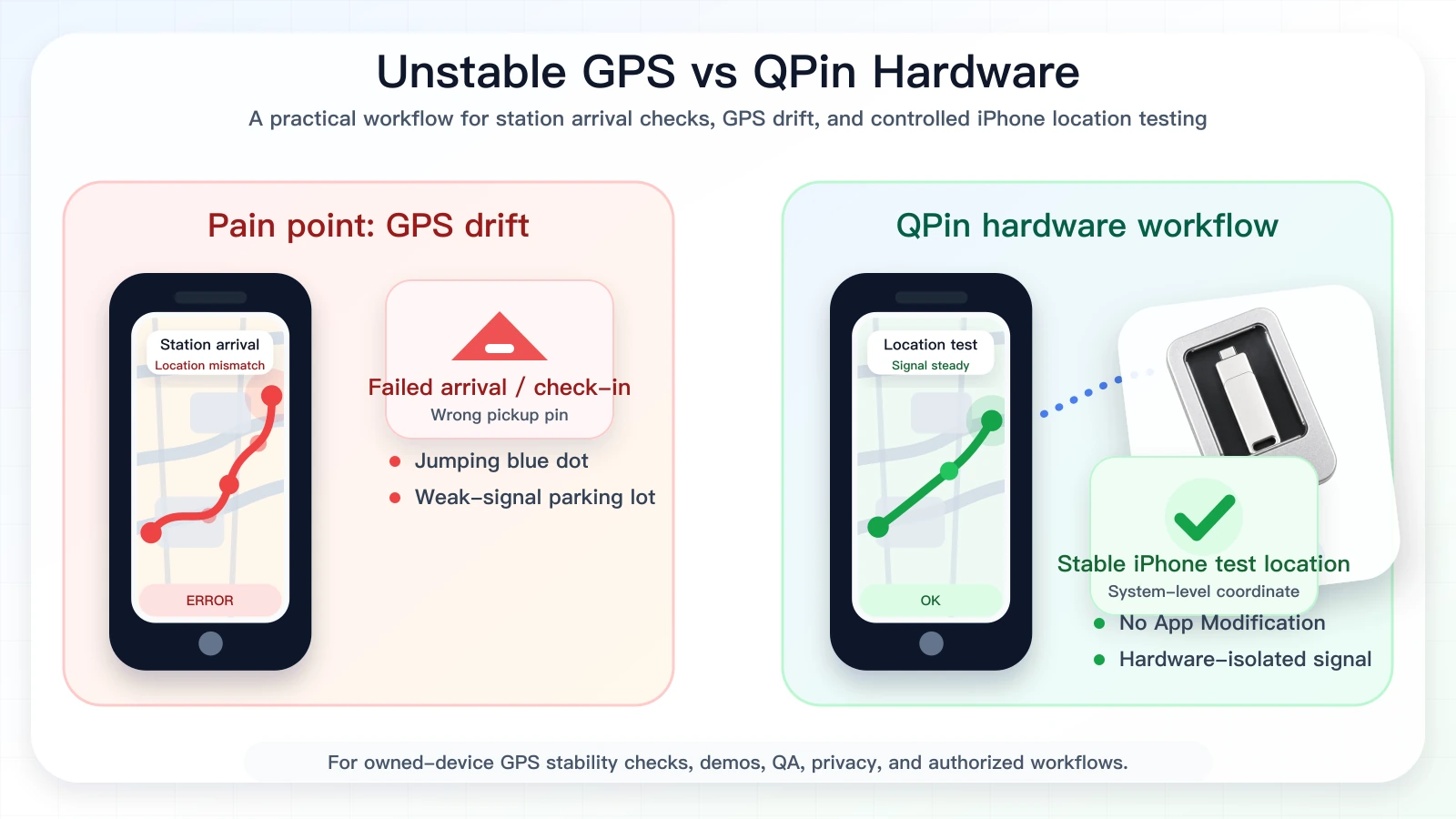
Proximity is the second problem. Spark Driver can be sensitive to Walmart store location, pickup areas, curbside bays, and geofences. Even when you are in the correct zone, a drifting iPhone GPS signal can make the app behave as if you are away from the pickup area. Drivers often notice this around large Walmart parking lots, covered pickup lanes, metal structures, and weak satellite visibility.
Remote research is the third problem. You may want to compare a new zone before driving 30 or 50 miles. Without a stable way to test a location, you are often guessing from memory, screenshots, driver forums, or old market notes.
Advanced tip: use QPin to research zones before you drive
Professional drivers do not want to waste gas just to discover that a new zone is quiet. QPin gives you a hardware-level way to set your iPhone system location to a selected Walmart Hotspot, store area, curbside pickup coordinate, or zone boundary for controlled research.
In supported setups, QPin modifies the iPhone system location. Apps that rely on iOS Location Services can read the selected coordinate. For Spark Driver zone research, that means you can compare how the app behaves when the iPhone location is set to a different area, instead of only relying on your physical GPS position.
Practical research use cases:
- Preview how Spark Driver behaves around a target zone coordinate.
- Compare Walmart Hotspot areas before committing to a long drive.
- Check whether the app reflects a selected store area or pickup zone.
- Test whether Apple Maps and Spark Driver agree on the same Walmart location.
- Document GPS drift and location-dependent screens for support or QA.
This is not a promise that Spark Driver will show offers, unlock a zone, or accept every coordinate. Spark Driver can still apply account, market, timing, network, sensor, geofence, and policy checks. QPin gives you control over the iPhone system GPS coordinate, which is the part your phone can control.
Solving the "I've Arrived" GPS glitch
One of the highest-converting Spark Driver pain points is the arrival problem. A driver changes zones, drives to the Walmart store, parks near curbside pickup, and the arrival action still does not behave as expected. Sometimes the button stays unavailable. Sometimes the blue dot jumps. Sometimes Apple Maps looks fine while the Spark Driver screen looks delayed or offset.
This often comes from iPhone GPS drift. Large Walmart stores are difficult GPS environments. Signals can bounce off metal roofs, pickup canopies, parked vehicles, walls, store signage, and nearby commercial buildings. iOS blends satellite, cellular, Wi-Fi, Bluetooth, and motion data into a single estimate. A 5 to 10 meter jump may be harmless on a street map, but it can matter near a curbside geofence.
QPin helps by letting you set a stable iPhone system location for the store or curbside coordinate you are allowed to test. Instead of letting the phone jump around the parking lot, you can hold a selected coordinate and compare Spark Driver, Apple Maps, and other location-based apps against the same point.
Why QPin is different from modified apps and software spoofers
Software-only spoofing often sounds convenient, but it creates the wrong risk profile for Spark Driver users. Modified apps, cloned apps, injected packages, jailbreak tools, and random profiles can change the app environment itself. That is not the same thing as controlling the iPhone system location.
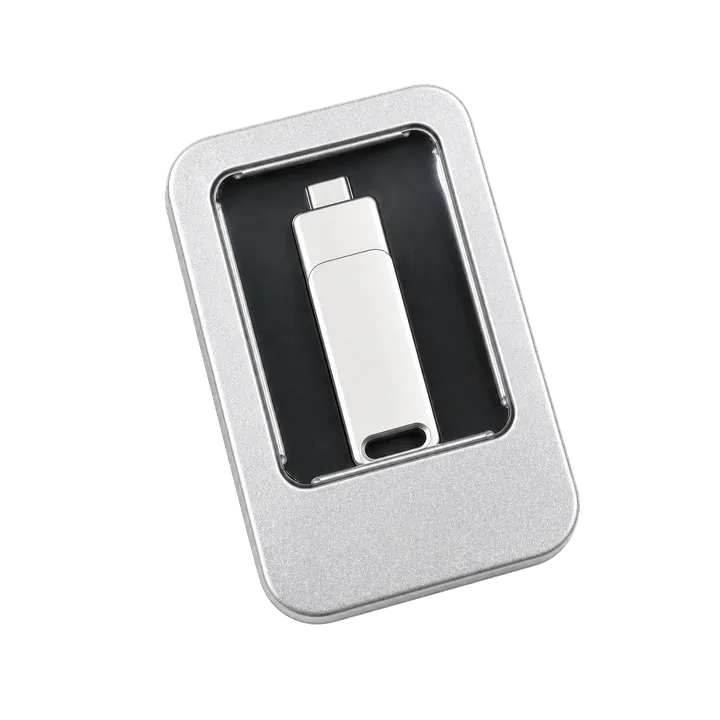
QPin is different because it is a physical hardware workflow:
- No jailbreak required: keep the iPhone in a normal daily-use state.
- No Spark Driver app modification: QPin does not patch, clone, inject, or repackage the app.
- System-wide location: the selected coordinate is applied at the iPhone system-location layer in supported setups.
- Hardware isolation: the location workflow is separate from the Spark Driver app package.
- Practical for drivers: use it for zone research, GPS stability, Walmart pickup-zone testing, demos, privacy, support evidence, and authorized workflows.
For SEO terms like "Spark Driver change zone" and "fix Spark Driver GPS drift", this distinction matters. A serious driver does not need a risky modified app. They need stable iPhone GPS control.
How to use QPin for Spark Driver zone research
Use this workflow when you are allowed to test location behavior on your own iPhone:
- Pick the target zone, city, ZIP code, Walmart store, or Hotspot you want to research.
- Open Spark Driver and confirm your current zone state.
- Connect QPin hardware or use QPin Desktop with the macOS/Windows setup guide.
- Search the target Walmart Hotspot or enter a precise coordinate.
- Apply the coordinate to the iPhone system location.
- Open Apple Maps first and confirm the phone appears at the selected area.
- Open Spark Driver and observe how the selected zone or store context behaves.
- Save screenshots if you are comparing markets or documenting GPS drift.
- Stop the simulation and return to real GPS before normal navigation.
For portable hardware use, read the QPin Hardware Manual. For Android-controlled setup, review the QPin Android guide.
FAQ
Can I change my zone as many times as I want?
Spark Driver usually lets drivers change zones from inside the app, but frequent switching may be affected by market capacity, app state, account checks, or temporary review. A practical approach is to identify a small set of reliable zones and compare them consistently.
Does changing my zone affect my metrics?
Your account metrics generally belong to your account, not a single zone. However, local demand, store workflows, offer types, and pickup timing can change the way each zone feels in practice.
Why can't I see stores in my new Spark Driver zone?
The zone may be quiet, full, not active for your account, or not refreshed yet. It can also happen when the iPhone GPS has not updated to the new area. Restarting the app, checking Precise Location, and using a controlled GPS workflow like QPin can help you isolate whether the issue is app-side or location-side.
Can QPin show Spark Driver hotspots remotely?
QPin can set the iPhone system location to a selected zone or Walmart Hotspot coordinate in supported setups. If Spark Driver makes location-dependent zone or hotspot information available to your account, you can compare what the app shows from that selected coordinate. QPin does not unlock restricted markets or guarantee offers.
Is QPin safe for Spark Driver?
QPin does not modify the Spark Driver app. It controls iPhone system location through a hardware workflow in supported setups. You should still follow Spark Driver and Walmart rules and use location testing only where you are allowed.
Conclusion: master your location, master your zone research
Changing your zone in Spark Driver is easy. Choosing the right zone is harder. In 2026, serious drivers need more than an app setting. They need to understand Walmart Hotspots, pickup geofences, iPhone GPS drift, and whether a new zone is worth the drive.
QPin Hardware gives you a practical way to modify and stabilize the iPhone system GPS location without jailbreak or app modification. Use it to research new Spark Driver zones, compare Walmart pickup areas, troubleshoot greyed-out arrival screens, and keep location-dependent testing under control.
Shop QPin Hardware - Worldwide Shipping, USDT/USDC Accepted
Related guides
- Best Way to Mock/Modify GPS on Spark Driver App without Jailbreak
- Spark Driver location verification issues on iPhone
- Best iPhone GPS stability tool for delivery and ride-hailing drivers
- QPin Hardware Manual
- QPin Desktop for Mac and Windows
- iPhone GPS jumping or drifting fixes
FAQ
Can I change my zone in Spark Driver?
Yes. Spark Driver includes a zone-change flow in the app. You can usually select a new area by city or ZIP code, but store availability, account state, market capacity, and platform rules still affect what you see.
Can QPin help research Spark Driver zones before driving there?
In supported setups, QPin changes the iPhone system location to a selected Walmart hotspot or zone coordinate, so apps that rely on iOS Location Services can read that coordinate for controlled research and comparison.
Why does Spark Driver not recognize my location after changing zones?
Common reasons include iPhone GPS drift, weak Walmart parking-lot signal, disabled Precise Location, stale cellular/Wi-Fi assistance data, curbside geofence mismatch, and account or market-side checks.
Does QPin guarantee Spark Driver offers or arrival results?
No. QPin controls the iPhone system GPS coordinate. Spark Driver and Walmart still control offers, account status, store capacity, geofences, timing, network checks, sensor checks, and policy decisions.