How To Change Location In Amazon Flex App | Quick Tutorial 2026
Learn the difference between changing your Amazon Flex delivery area and changing iPhone system GPS with QPin hardware for controlled location testing.
How To Change Location In Amazon Flex App | Quick Tutorial 2026
Quick answer: if you want to change location in the Amazon Flex app, first decide what you actually mean. Changing your Amazon Flex delivery area, region, or pickup station is an account-side setting or support workflow. Changing the GPS location shown by your iPhone is a device-side workflow. QPin Hardware focuses on the second one: in supported setups, it can change the iPhone system location to a selected coordinate, so apps that rely on iOS Location Services usually reflect that location.
That distinction matters. Amazon Flex can still use station geofences, block timing, account status, route state, package scans, network signals, sensor behavior, and policy rules. QPin changes the iPhone system GPS layer; it does not edit your Amazon Flex account or guarantee how Amazon Flex will respond. Use it only where you are allowed to test location behavior.
Before You Start: Two Different Types of "Location"
Most searchers type "how to change location in Amazon Flex app" because they are facing one of three problems:
- They moved to a new city and want a different delivery area.
- The app says they are not at the station even though they are nearby.
- The iPhone blue dot is drifting, jumping, or snapping to the wrong side of a warehouse.
These are not the same problem. A delivery area is controlled by Amazon Flex account settings and local availability. A pickup station is controlled by Amazon Flex workflow rules. Your iPhone GPS coordinate is controlled by iOS Location Services and the hardware signals available to the phone.
QPin is useful when the problem is the iPhone system location itself. It gives you a controlled way to set a known coordinate, verify the result in Apple Maps, and compare how location-based apps behave. It is not a replacement for Amazon Flex account settings, station eligibility, schedule rules, or official support.
Method 1: Change Your Amazon Flex Delivery Area Officially
If your goal is to move your Flex account to another metro, zip code, or pickup region, start inside the Amazon Flex app:
- Open the Amazon Flex app.
- Check the main menu, Settings, or Help section for delivery area, region, or station options.
- If the option is available, follow the in-app prompts.
- If the option is not available, contact Amazon Flex Support from inside the app.
- After the change, reopen the app and confirm that available blocks or station options match the new area.
The exact menu name can vary by country, account status, and app version. In some markets, changing region or pickup station may require an active delivery partner account, available capacity in the new region, or a support-side update. If Amazon Flex says your account cannot move yet, QPin cannot change that account-side decision because QPin only works with the iPhone location layer.
Use this official path for real account relocation, moving cities, changing your normal pickup market, or correcting an account setup problem.
Method 2: Change iPhone GPS Location With QPin Hardware
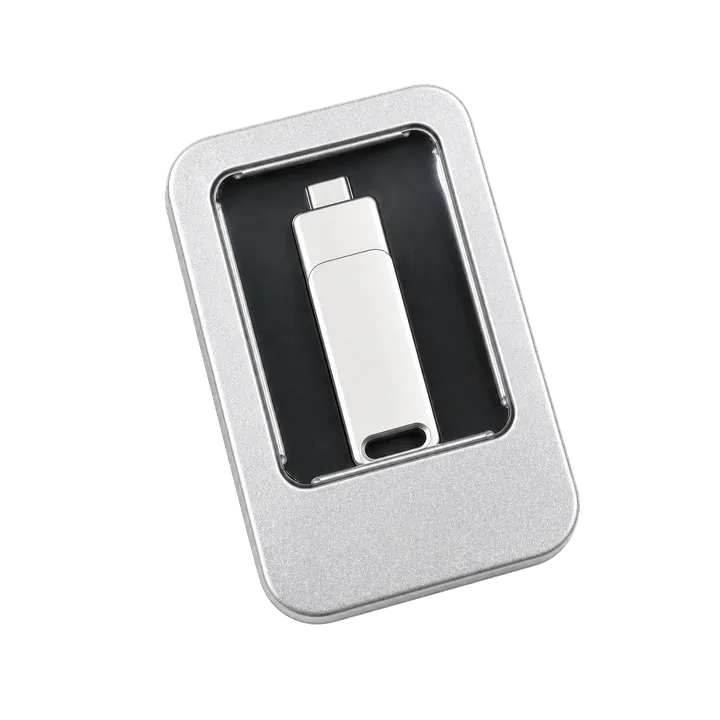
If your goal is to change the GPS location that iPhone apps read, QPin is the cleaner workflow. Instead of modifying Amazon Flex, installing a patched app, or jailbreaking the phone, QPin applies a selected coordinate at the iOS system-location layer in supported setups.
That means Apple Maps, QA builds, test tools, and many apps that rely on iOS Location Services will usually see the same selected iPhone location. This is especially useful when you need to test Amazon Flex station pins, warehouse GPS drift, wrong pickup coordinates, or route-start behavior on a device you own.
Basic workflow:
- Connect the iPhone using the QPin hardware workflow or supported QPin desktop/controller setup.
- Open QPin Desktop, the Mac/Windows guide, or the Android controller guide, depending on your setup.
- Search for the target address, warehouse, station, or test coordinate.
- Apply the coordinate to the iPhone system location.
- Open Apple Maps first and wait until the blue dot is stable.
- Cold-start Amazon Flex and compare what the app displays.
- Stop the test and return the phone to real GPS when you are done.
This is a hardware-based, no-jailbreak workflow. It does not require editing the Amazon Flex app package. It does not patch app code. It is meant for owned-device testing, GPS stability checks, demos, privacy workflows, QA, support reproduction, and authorized location testing.
Why QPin Is Different From Software-Only Spoofers
Software-only spoofers often create the wrong risk profile for modern delivery apps. They may rely on developer mode traces, modified app packages, sideloaded certificates, cloned apps, or static coordinates that do not look like normal iPhone location behavior.
QPin takes a different route. The selected coordinate is applied to the iPhone system location, which gives you a consistent baseline across Apple Maps and other iOS location clients. For Amazon Flex testing, that makes the workflow easier to verify: first confirm the iPhone location in Apple Maps, then compare Amazon Flex behavior.
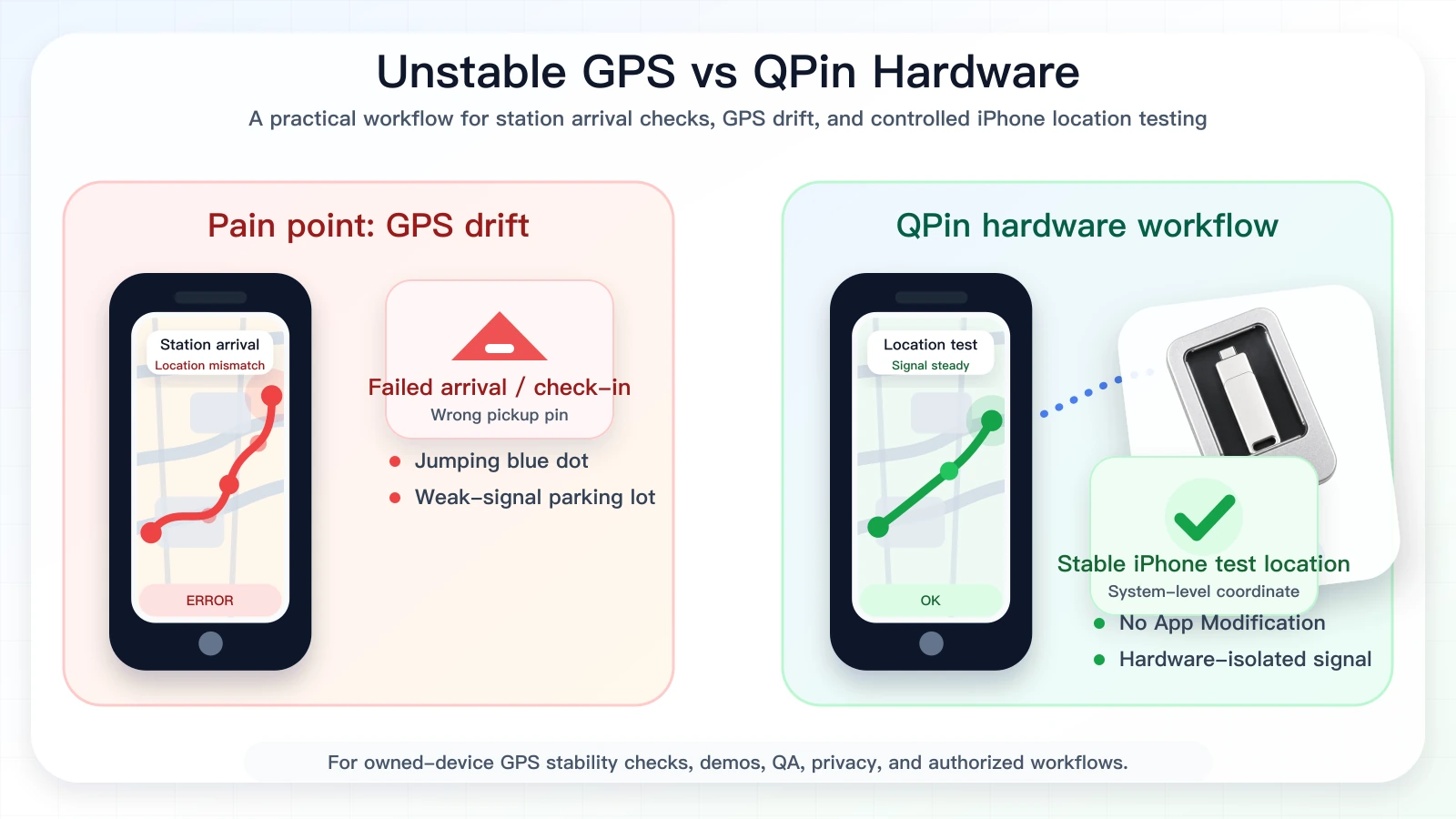
The practical advantage is stability. Around Amazon warehouses, GPS can degrade because of metal roofing, loading bays, parked vans, indoor pickup lanes, weak sky view, Wi-Fi positioning, and stale cell-tower assistance. QPin lets you test a fixed coordinate instead of fighting a blue dot that jumps across the parking lot every few seconds.
What Amazon Flex May Still Check
Changing the iPhone system location is not the same as controlling Amazon Flex. A station or block workflow can include:
This is why a professional workflow separates the device test from the live platform decision. QPin can help you verify and stabilize the iPhone location. Amazon Flex still controls its own business logic.
Quick Tutorial: A Practical Test Flow
Use this flow when you are troubleshooting an owned device or preparing a controlled test:
- Check the official setting first. If you need a new delivery area, use Amazon Flex settings or support.
- Clean the iPhone setup. Remove questionable modified apps, disable VPN during diagnosis, and restart the iPhone.
- Enable location basics. Turn on Location Services, Precise Location, cellular data, and Wi-Fi.
- Set a known coordinate with QPin. Choose a station driveway, warehouse entrance, or neutral QA coordinate.
- Verify in Apple Maps. Do not open Amazon Flex first. Apple Maps gives you a clean view of the iOS system location.
- Open Amazon Flex fresh. Fully close and reopen the app so it reads the current iOS location.
- Document the result. Save screenshots, timestamp, coordinate, network state, and app version.
- Restore real GPS. End the test when you are done.
If Apple Maps shows the selected coordinate but Amazon Flex does not behave as expected, the issue is probably not simple iPhone GPS drift. It may be account-side, station-side, timing-related, route-related, or controlled by Amazon Flex app logic.
Evidence Checklist for a Clean Test
A clean Amazon Flex location test should be easy to repeat. Before you decide whether a problem is GPS drift, station logic, or account setup, keep the evidence small and consistent:
This section is important for conversion because it explains why QPin is not just another fake GPS shortcut. QPin can change the iPhone system GPS coordinate, and the result can be verified before the app workflow is tested.
When This Helps Most
QPin is most useful for repeatable testing and GPS stability work:
- Reproducing Amazon Flex "not at station" messages.
- Comparing a warehouse pin against Apple Maps.
- Testing whether an iPhone has GPS drift near a station.
- Demonstrating a location-based workflow to a support or QA team.
- Checking how an app responds to a stable iOS system coordinate.
- Keeping a test device steady during screen recording or training.
For deeper station-arrival troubleshooting, read Amazon Flex app says you are not at the station. For a broader delivery-app cluster, start from Best iPhone GPS stability tool for delivery and ride-hailing drivers.
What To Avoid
Avoid workflows that create unnecessary account and device risk:
- Do not use modified Amazon Flex app packages.
- Do not jailbreak a work phone for a simple GPS test.
- Do not rely on cloned apps or random fake GPS profiles.
- Do not use location tools to misrepresent a live workflow that requires physical presence.
- Do not assume a changed iPhone coordinate means Amazon Flex must accept that coordinate.
The better technical approach is to keep the app untouched, test the iPhone system location cleanly, and document the difference between GPS drift and platform-side logic.
Compliance Note
QPin is not affiliated with Amazon Flex, Amazon, DoorDash, Uber Eats, Spark Driver, Walmart, Uber, Lyft, or any delivery platform. Users should follow the rules of the apps and platforms they use. QPin is designed for owned-device testing, GPS stability checks, demos, privacy, QA, and authorized workflows.
QPin can change iPhone system location in supported setups. Amazon Flex can still apply its own account, station, network, sensor, timing, geofence, and policy checks. Use QPin only where you are allowed to test location behavior.
FAQ
Can I change my Amazon Flex delivery area with QPin?
No. QPin does not edit your Amazon Flex account. Use Amazon Flex app settings or support for delivery area, region, pickup station, and account changes.
Can QPin change the iPhone location that Amazon Flex reads?
QPin can change the iPhone system location in supported setups. Apps that rely on iOS Location Services usually reflect that selected coordinate, while Amazon Flex may still apply its own checks.
Is this a jailbreak method?
No. QPin is designed for a no-jailbreak workflow and does not require modifying Amazon Flex.
Why does Amazon Flex still show the wrong place after Apple Maps is correct?
That usually means the issue may involve station pins, account region, block timing, route status, cached app data, network context, or Amazon Flex platform logic rather than raw iPhone GPS.
Where should I start?
Start with the QPin product overview, then choose QPin Desktop, the Mac/Windows setup guide, the Android controller guide, or the QPin Hardware Manual.
FAQ
Can I change my location in the Amazon Flex app?
There are two meanings. Changing your delivery area or pickup station is an account-side Amazon Flex setting or support request. Changing the iPhone GPS coordinate is a device-side workflow. QPin hardware can change the iPhone system location in supported setups, but Amazon Flex may still apply account, station, network, sensor, and policy checks.
Does QPin change my Amazon Flex region or account settings?
No. QPin works at the iPhone system-location layer. It does not edit your Amazon Flex account, delivery area, station eligibility, schedule, block assignment, or marketplace settings.
Will Amazon Flex read the QPin-selected iPhone location?
Apps that rely on iOS Location Services usually read the current iPhone system location. QPin can set that system location in supported setups. Amazon Flex can still add its own geofence, timing, account, network, sensor, and policy logic.
Do I need to jailbreak my iPhone to use QPin?
No. QPin is designed for a no-jailbreak workflow and does not require modifying the Amazon Flex app package.